
Managing Users
The Users section is where you add, manage, and remove people who have access to your school’s Ask.School account.
How to Get There
From the School Dashboard, click Users & Groups in the left sidebar under Settings.
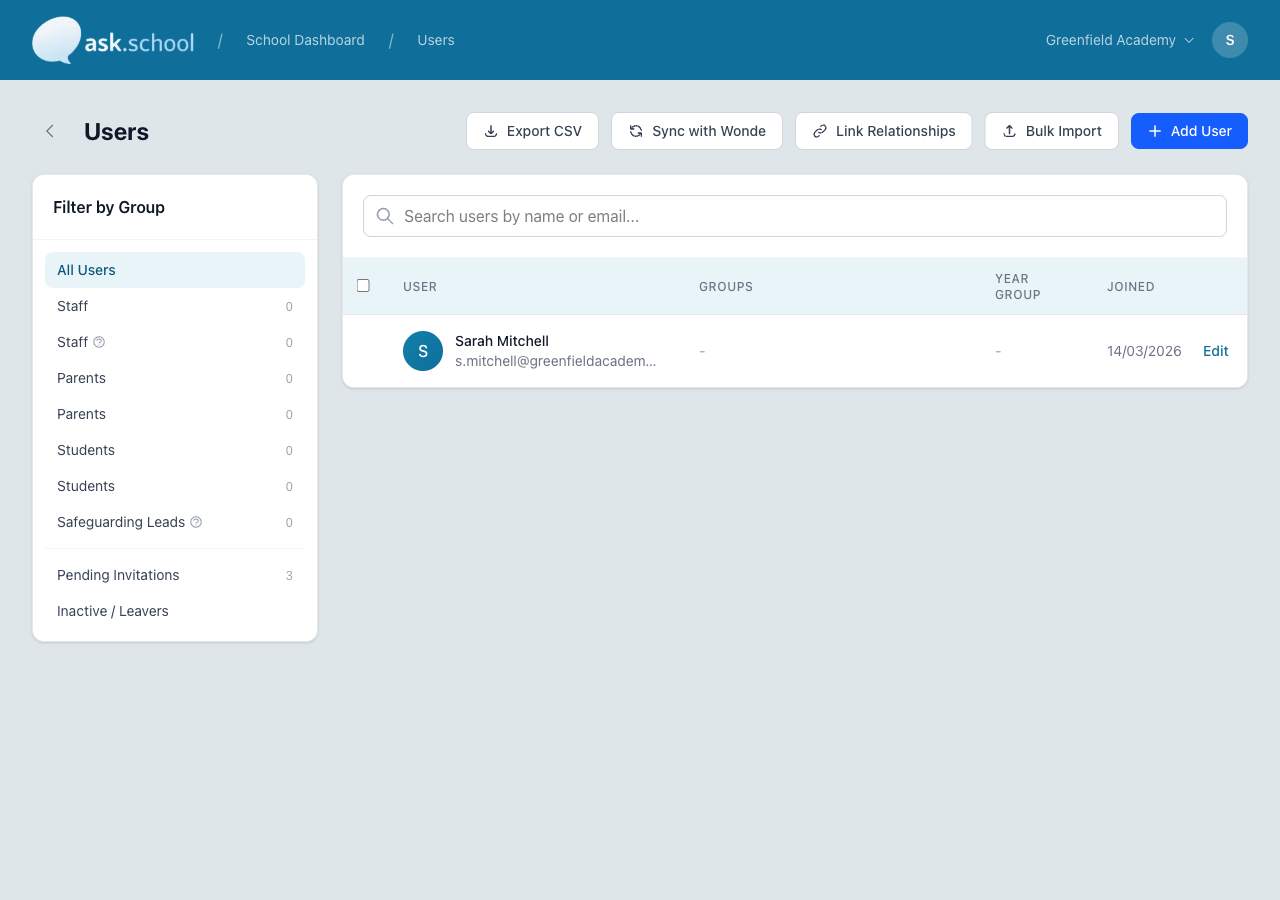 The Users page showing the group filter sidebar, search bar, and user list
User roles
There are two main levels of access:
| Role | What they can do |
|---|---|
| Owner | Full control — manage settings, billing, users, chatbots, and all content. Cannot be removed. |
| Manager | Manage school settings, users, chatbots, and content. Cannot access billing or delete the school. |
Regular users (staff, students, parents) access the platform through User Groups, which grant specific permissions.
Inviting users
- Go to Users from the sidebar.
- Click Invite User.
- Enter the person’s email address.
- Choose their role (Owner or Manager) or assign them to a user group.
- Click Send Invitation.
The person will receive an email with a link to create their account and join your school.
Users can only join your school if they have been invited. They cannot sign up on their own.
Bulk import
To add many users at once, use the CSV import feature. You can also link parent-student relationships with a second CSV.
See the full guide: Importing Users
Finding users
The users page includes a search bar at the top to filter by name or email. A group filter sidebar on the left lets you narrow the list to specific groups — click a group name to see only its members. Each group shows its member count.
Users are displayed with their status (Active or Inactive), joined date, and group memberships.
Managing existing users
From the users list you can:
- View a user’s profile, role, and group memberships
- Change a user’s role
- Remove a user from your school — they will lose access immediately
- Resend an invitation if someone hasn’t accepted yet
Pending invitations
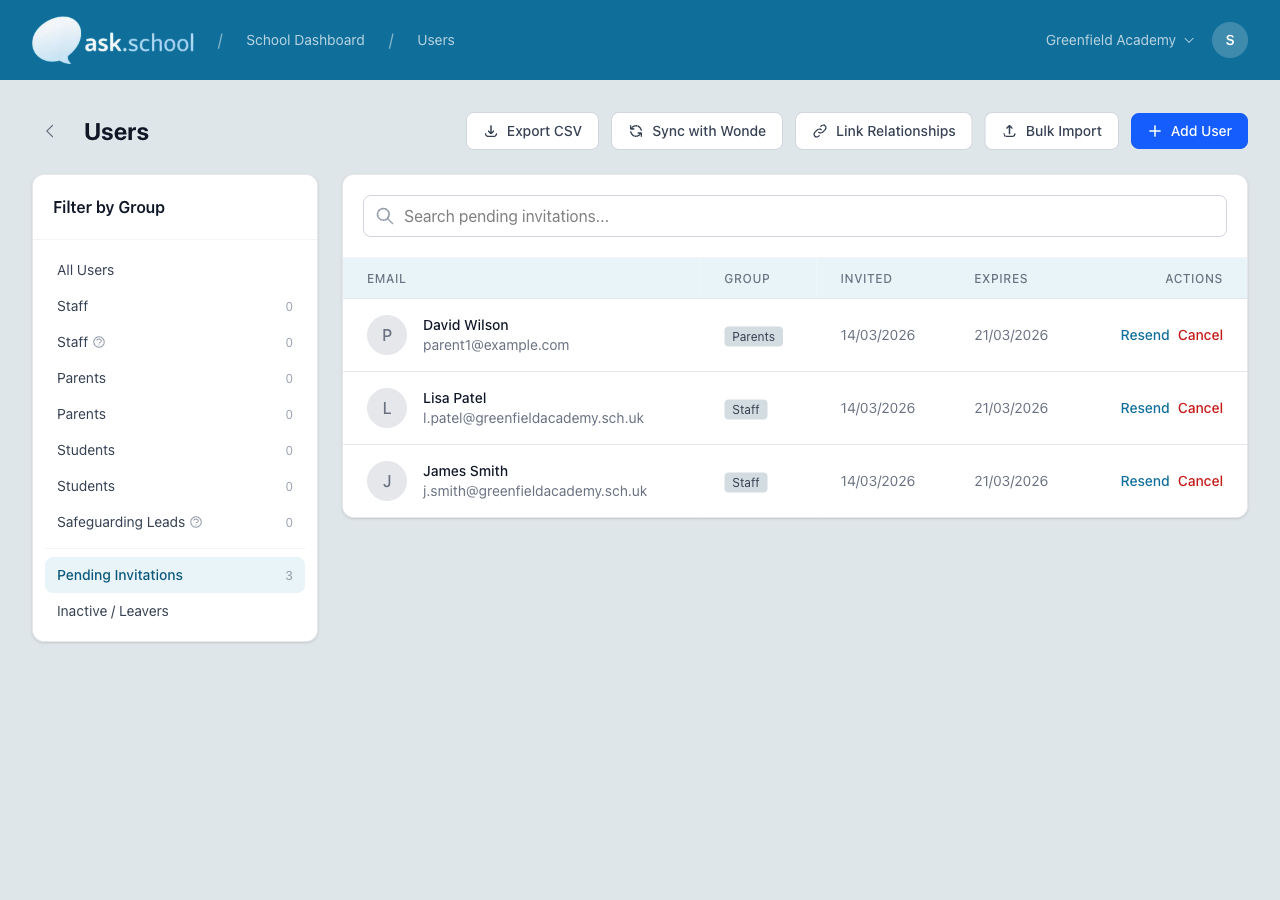 The Pending Invitations view showing users who have been invited but not yet joined
Invitations that haven’t been accepted appear in a separate list. You can:
- Resend the invitation email
- Cancel the invitation
Invitations do not expire, but you can cancel and re-send them if needed.
Good to Know
- Users sign in with their email address and password, or via social login (Google or Microsoft).
- Removing a user does not delete their conversation history.
- Each user belongs to one or more User Groups that determine their permissions and chatbot access.
- The number of users is not limited by your subscription plan — add as many as you need.
- If your school uses a MIS (SIMS, Arbor, Bromcom), you can sync users automatically — see MIS Integration.
Next Steps
- Importing Users — Add many users at once with CSV
- User Groups — Set up groups and permissions
- MIS Integration — Sync users from your school MIS
- Security & 2FA — Configure login security
- School Profile Settings — General school configuration