
Importing Users
Ask.School lets you import users in bulk from a CSV file and link parents to students with a second CSV. This is the fastest way to get your school set up.
How to Get There
From the School Dashboard, click Users & Groups in the left sidebar under Settings. On the Users page, click Bulk Import (or Link Relationships for parent-student linking).
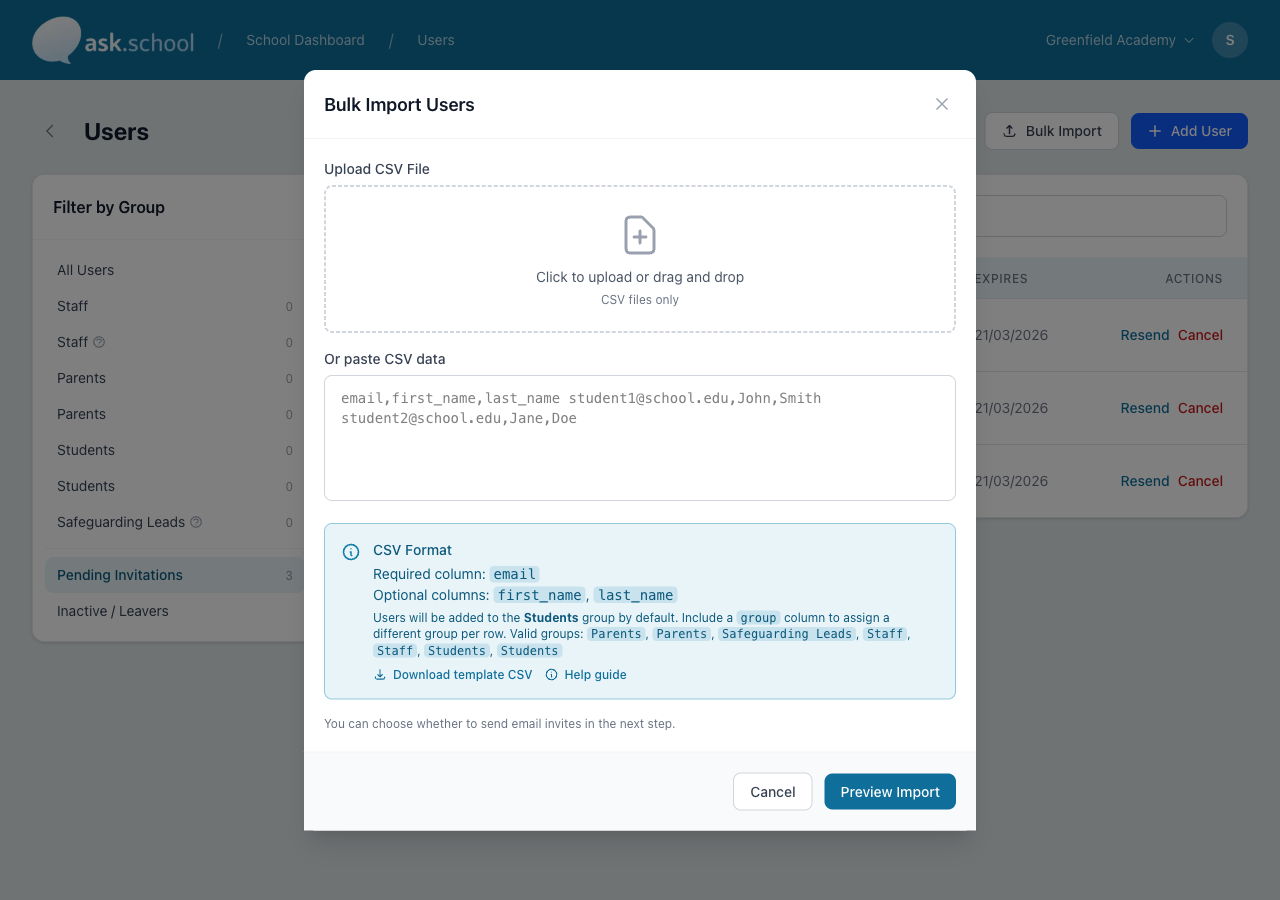 The Bulk Import dialog showing CSV upload, paste area, and expected format guide
Importing users
Prepare your CSV file
Your CSV file needs an email column. The other columns are optional:
| Column | Required? | Notes |
|---|---|---|
email |
Yes | Must be a valid email address |
first_name |
No | The user’s first name |
last_name |
No | The user’s surname |
group |
No | Which group to add the user to (e.g. “Students”, “Staff”, “Parents”) |
If you leave the group column blank (or omit it entirely), users will be added to the Students group by default.
You can download a ready-made template CSV from the import screen — click Download template CSV to get a file with the correct column headings and your school's group names pre-filled.
Upload and preview
- Go to Users from the sidebar.
- Click Import Users.
- Either upload a CSV file or paste CSV data directly into the text box.
- Click Preview Import.
The preview screen shows you exactly what will happen before anything is created:
- Total Rows — how many rows were found in your file.
- Valid — rows that will be imported successfully.
- Invalid — rows with problems that will be skipped.
Each row in the preview table shows the email, name, group, and a status badge. Invalid rows appear first so you can spot problems easily. If your file has more than 50 rows, the preview shows the first 50 (with errors prioritised) and displays a note with the full count.
Common errors and how to fix them
| Error message | What it means | How to fix it |
|---|---|---|
| Email is required | The email column is empty for this row | Add an email address, or delete the row |
| Invalid email format | The email address is not valid (e.g. missing domain, double @) |
Correct the email address |
| Email contains spaces | There is a space inside the email address | Remove the space (leading/trailing spaces are handled automatically) |
| Duplicate email (same as row N) | This email already appears earlier in the file | Remove one of the duplicate rows |
| Unknown group: X | The group name doesn’t match any group in your school | Check the spelling, or use one of your school’s existing group names |
Group names are matched regardless of upper/lower case — "students", "Students", and "STUDENTS" all work the same way.
Emails are automatically converted to lowercase and trimmed of extra spaces.
Confirm and import
- Review the preview table for any errors.
- Choose whether to send email invitations — toggle this off if you don’t want users to receive an email straight away.
- Click Import N Users to create the invitations.
- The completion screen shows how many invitations were created and how many were skipped, along with details of any issues.
If a user already has a pending invitation or is already a member of your school, their row will be skipped. This is safe — you won't create duplicate accounts.
Linking parent-student relationships
After importing users, you can link parents to students so your school has a record of family relationships. This is used for safeguarding and reporting.
Prepare your CSV file
| Column | Required? | Notes |
|---|---|---|
student_email |
Yes | The student’s email address (must already be a user in your school) |
parent_email |
Yes | The parent’s email address (must already be a user in your school) |
relationship_type |
No | Defaults to “guardian” if blank |
Valid relationship types: mother, father, guardian, step_parent, grandparent, carer, other.
Import your users first (using the user import above), then import relationships. Both the student and parent must already exist as users in your school before they can be linked.
Upload and preview
- Go to Users from the sidebar.
- Click Link Relationships.
- Upload your CSV file or paste the data.
- Click Preview.
The preview works the same way as the user import — you’ll see a summary of valid and invalid rows, with error details for each problem.
Common errors and how to fix them
| Error message | What it means | How to fix it |
|---|---|---|
| Student/Parent email: email is required | One of the email columns is empty | Add the missing email address |
| Student/Parent not found in organisation | The email doesn’t belong to a current user in your school | Import the user first, or check the email address |
| Student and parent cannot be the same person | Both columns have the same email | Correct one of the email addresses |
| Invalid relationship type | The type isn’t one of the seven accepted values | Use one of: mother, father, guardian, step_parent, grandparent, carer, other |
| Duplicate of row N | This exact student-parent pair already appears earlier in the file | Remove one of the duplicate rows |
Confirm and import
- Review the preview for errors.
- Click Import N Relationships.
- The completion screen shows how many relationships were created, updated, or skipped.
If a relationship between the same student and parent already exists, it will be updated (not duplicated) with the new relationship type.
Tips for a smooth import
- Start with a small test. Try importing 5-10 users first to make sure your CSV is formatted correctly.
- Check your groups first. Make sure the groups you reference in the CSV (e.g. “Students”, “Staff”, “Parents”) already exist in your school. You can set these up in User Groups.
- Import users before relationships. The relationship import needs both the student and parent to already exist.
- Don’t worry about case or spaces. Email addresses are normalised automatically, and group names are matched regardless of capitalisation.
- Re-importing is safe. Duplicate emails are skipped for users, and duplicate relationships are updated rather than duplicated.
Good to Know
- The import creates invitations, not accounts. Each user still needs to accept their invitation and create a password (or sign in via Google/Microsoft).
- You can toggle email invitations off during import and send them later from the Users page.
- If your school uses the MIS Integration (Wonde), users and relationships are synced automatically — you only need CSV import for users not covered by the MIS.
Next Steps
- Managing Users — View and manage imported users
- User Groups — Set up groups before importing
- MIS Integration — Automatic user sync from your MIS