
Chatbot Calendars
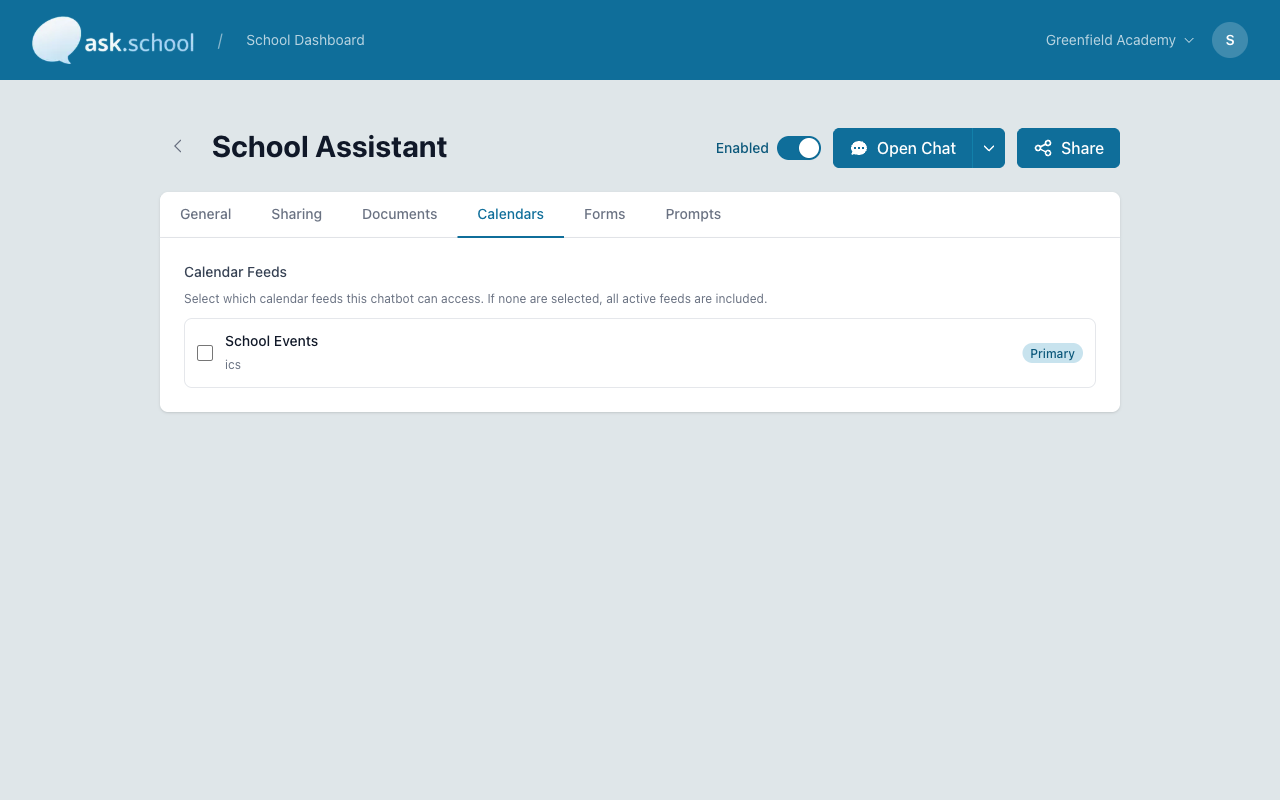
The Calendars tab lets you choose which calendar feeds a chatbot can use when answering questions about events, dates, and schedules. This is especially useful when you have multiple chatbots serving different audiences.
How to Get There
- Open your chatbot from the Chatbots panel on the dashboard
- Click the Calendars tab at the top of the chatbot editor
Features
Available Calendar Feeds
The tab lists all calendar feeds configured in your school’s Calendars settings. Each feed shows its:
- Name — The label you gave the feed when you set it up
- Type — The feed format (e.g. ics)
- Primary — Whether it is marked as the primary calendar feed
Checkbox Selection
Tick the checkbox next to each feed you want this chatbot to use. Only selected feeds will be available to the chatbot when answering calendar-related questions.
Default Behaviour
If no feeds are selected, the chatbot has access to all active feeds. This is the default and works well when you only have one chatbot or when all your chatbots should know about all events.
Selecting specific feeds restricts the chatbot to only those feeds. This is useful when you have multiple chatbots for different audiences. For example:
- A parents’ chatbot might need the main school events calendar but not the staff CPD calendar
- A staff chatbot might need the CPD calendar and the main calendar but not the PTA events feed
- A sixth form chatbot might only need the sixth form events calendar
Good to Know
- Calendar feeds must be set up in your school’s Calendars settings before they appear here. If you do not see a feed you expect, check the main Calendars page first.
- Selecting no feeds gives the chatbot access to everything — it does not block calendar access. This is by design so that new chatbots work out of the box.
- Changes take effect on new conversations. Users who are mid-conversation may still see answers from previously available feeds until they start a new chat.