
School Knowledge
School Knowledge is a curated set of topics that give your chatbot ideal responses to common questions. Each topic groups together questions and answers, related links, and documents so the chatbot has a single, authoritative source for that subject. Topics are included directly in the chatbot’s instructions, so they take priority over document search.
How to Get There
From the School Dashboard, click School Knowledge in the left sidebar under Knowledge.
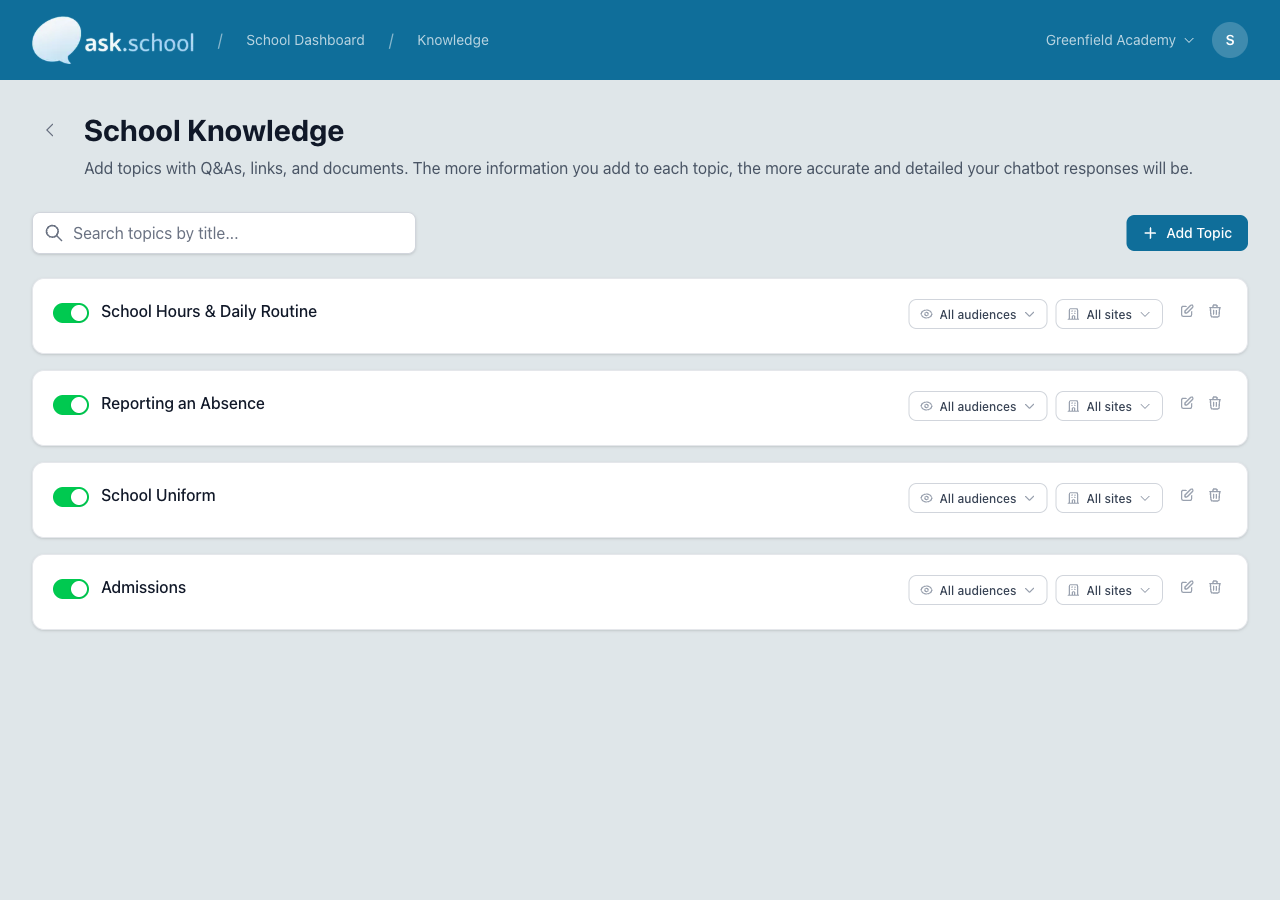 The School Knowledge page showing topics with active toggles and audience/site filters
What a topic contains
Each topic typically includes:
- Title — A short label that names the subject (e.g. “School Hours & Daily Routine”)
- Q&As — One or more questions and ideal answers the chatbot should use
- Related links — Optional URLs to include in the chatbot’s response (e.g. a link to the term dates page)
- Documents — Optional documents that belong to this topic
- Active toggle — Whether the chatbot currently uses this topic
- Audience filter — Which audiences (Staff, Parents, Students, Others, Public) the topic applies to
- Site filter — For multi-site schools, which sites the topic applies to
When someone asks your chatbot a question that matches a topic, the chatbot will use your answer rather than searching through documents.
Audience visibility
Each topic can be targeted to specific audiences using the audience filter:
| Audience | Who sees it |
|---|---|
| Students | Student users |
| Staff | Staff users |
| Parents | Parent/carer users |
| Others | Governors, visitors, external users |
| Public | Anyone using a public (not logged-in) chatbot |
By default, all audiences are enabled — the topic applies to everyone. Restrict to specific groups when a topic is staff-only or parent-only.
Audience visibility works alongside chatbot permissions. A user must have access to both the chatbot and the topic's audience to see it.
Adding a topic
- Go to School Knowledge from the sidebar.
- Click + Add Topic.
- Enter the title — write it the way a parent, student, or staff member would describe the subject.
- Add one or more Q&A pairs — type the question the way someone might ask it, then write a clear, complete answer.
- Optionally add related links — the chatbot will include these URLs in its response.
- Optionally attach documents that belong to this topic.
- Set the audience filter and (if applicable) site filter.
- Make sure Active is on, then click Save.
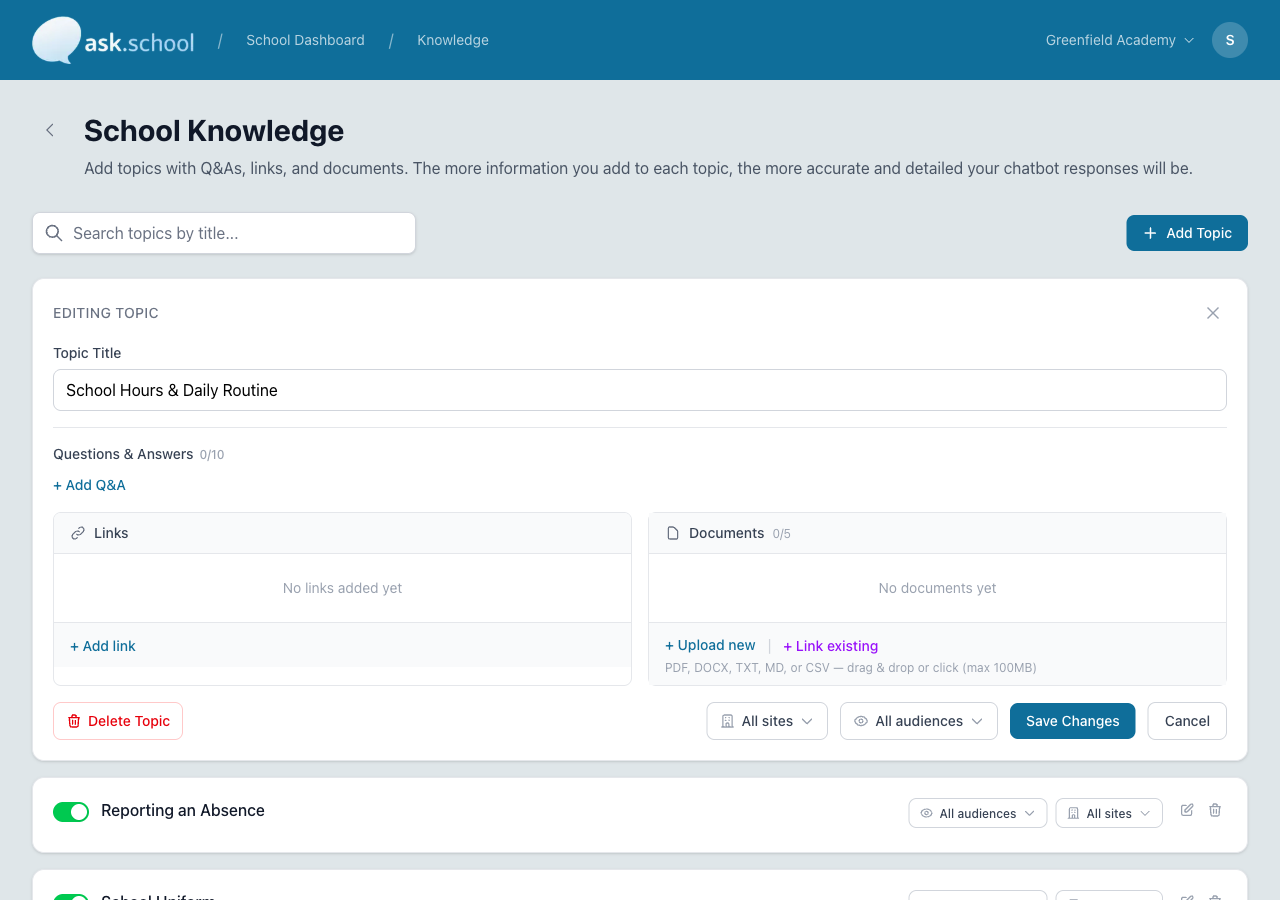 The topic editor with question, answer, related link, and audience visibility options
Examples
Here are some good knowledge topics:
| Topic | Example Q&A |
|---|---|
| School Hours & Daily Routine | “What time does school start?” → “School starts at 8:45 AM. Students should arrive by 8:30 AM for registration.” |
| Reporting an Absence | “How do I report an absence?” → “Email [email protected] or call 01234 567890 before 9:00 AM.” |
| School Uniform | “What is the school uniform?” → “Boys wear a navy blazer, grey trousers, white shirt, and school tie. Girls wear a navy blazer, grey skirt or trousers, and white blouse.” |
| Admissions | “When is the next open day?” → “Open days are listed on our admissions page. Book your place via the website.” |
Enabling and disabling topics
Each topic has an Active toggle. Turning it off removes the topic from the chatbot’s instructions without deleting it. This is useful for seasonal information (e.g. summer holiday arrangements) that you want to keep on file but not show year-round.
Good to Know
- Topics are included in the chatbot’s system prompt, so they have a strong influence on responses.
- Keep topics focused — group related Q&As under a single topic rather than creating many tiny topics.
- For detailed reference material, upload a document instead and attach it to the relevant topic.
- The chatbot uses topic titles to decide which topic is relevant to a user’s question, so write descriptive titles.
Next Steps
- Documents — Upload detailed documents
- Website Content — Pull in pages from your school website
- Style Guide — Set the chatbot’s tone of voice