
Chatbot Sharing & Access
The Sharing tab lets you control who can access your chatbot and how they find it. You can copy the direct access link, restrict the chatbot to specific user groups (Staff, Parents, Students), and enable Generative AI Safety Features per audience.
How to Get There
- Open your chatbot from the Chatbots panel on the dashboard
- Click the Sharing tab at the top of the chatbot editor
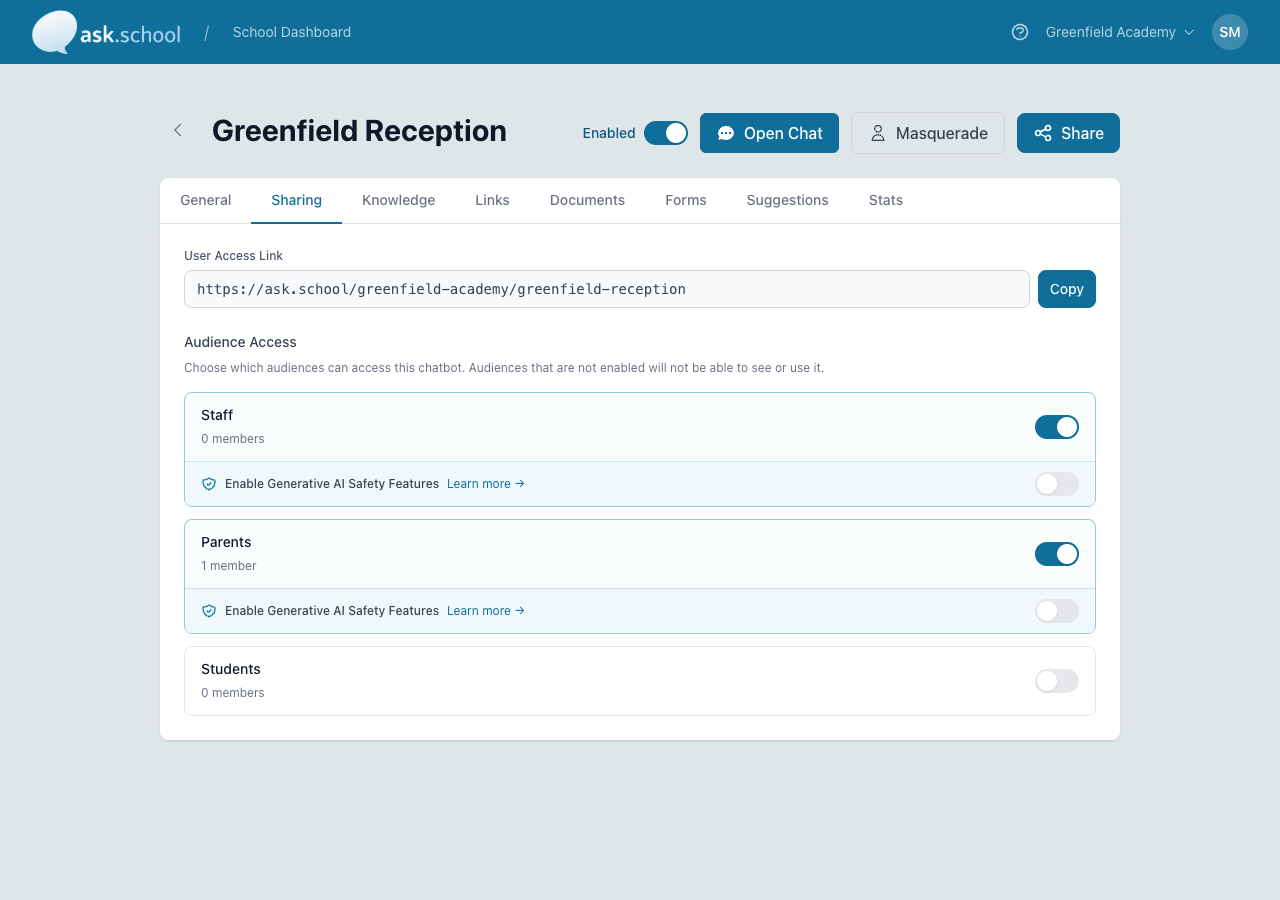 The Sharing tab
User Access Link
At the top of the Sharing tab is the direct URL for your chatbot. This is the link logged-in users visit to start chatting. Click Copy to grab the link, then share it however you like — paste it into an email, add it to your school website, or include it in a newsletter.
Audience Access
Audience Access lets you choose which user groups can use the chatbot. There’s a toggle for each audience: Staff, Parents, and Students. When a group is enabled, members of that group can see and use the chatbot. When a group is disabled, those members are blocked from accessing it.
The current member count for each audience is shown next to its label (e.g. 0 members, 1 member).
Generative AI Safety Features
Each enabled audience has an extra Enable Generative AI Safety Features toggle. When turned on, additional safety guardrails are applied to the chatbot’s responses for that audience — useful for safer experiences with student users in particular. Click Learn more → in the app for the latest detail on what’s covered.
Good to Know
- If you want to hide a chatbot entirely, deactivate it from the General tab (using the Enabled toggle in the page header) instead of removing all audience toggles.
- Changes to audience access take effect immediately — users currently chatting are not interrupted, but new sessions will respect the updated permissions.
- Member counts reflect the size of each audience group across the school, not the number of conversations.
- For multi-site schools, the chatbot inherits site behaviour from your school configuration. There’s no per-chatbot site filter on the Sharing tab.
Next Steps
- Managing Users — Add and manage the users who can access your chatbots
- User Groups — Create and configure user groups for audience access
- Chatbot Guardrails — Background on the safety features applied to responses
- Creating Chatbots — Return to the chatbot configuration overview