
Contacts & Notifications
The Contacts & Notifications page is where you record the named people at your school that the chatbot can refer enquirers to, and the email addresses that receive notifications and safeguarding alerts. It replaces the old Notifications & Alerts section that used to live inside School Profile Settings.
How to Get There
From the School Dashboard, click Contacts in the left sidebar under Your School.
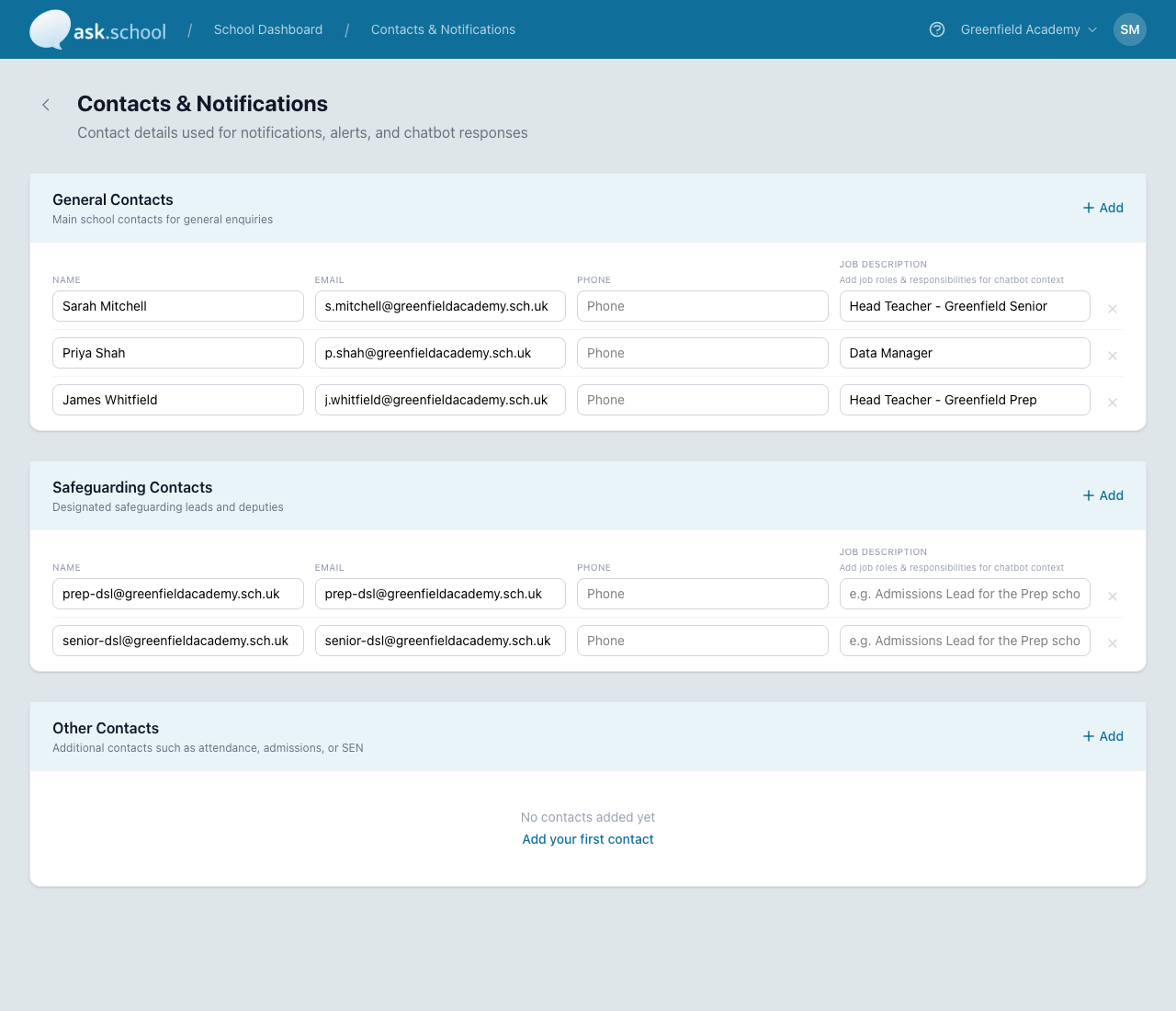 The Contacts & Notifications page
How the Page is Organised
The page is split into three sections:
- General Contacts — Main school contacts for general enquiries (e.g. the School Office, the Headteacher’s PA, the Data Manager)
- Safeguarding Contacts — Designated Safeguarding Leads and deputies. Safeguarding alerts go to the email addresses listed here.
- Other Contacts — Additional named contacts such as Attendance, Admissions, Finance, or SEN
Each section has an + Add button in its header to add a new contact to that section.
What Each Contact Has
Every contact row contains the following fields:
- Name (required) — The contact’s name (e.g. “Sarah Mitchell”).
- Email — The contact’s email address. For Safeguarding Contacts, this is also where safeguarding alerts are sent.
- Phone — Optional phone number for the contact.
- Job Description — Optional context for the chatbot about this person’s role and responsibilities (e.g. “Head Teacher – Greenfield Senior”, “Admissions Lead for the Prep school”). The chatbot uses this to choose the right contact when answering “Who do I contact about…?” questions.
A × button on the right of each row removes that contact.
Adding a Contact
- In the section that fits the contact (General, Safeguarding, or Other), click + Add.
- A new empty row appears. Type the Name (required), Email, Phone, and Job Description.
- Click Save Changes in the sticky bar at the bottom of the page.
How the Chatbot Uses Contacts
When a user asks the chatbot something like “Who do I email about admissions?” or “Who is the safeguarding lead?”, the chatbot looks at the names, emails, and job descriptions you’ve entered on this page and picks the most relevant contact to refer the user to. Keeping the list complete and well-described makes the chatbot’s referrals more accurate.
Safeguarding alerts raised by Conversation Monitoring are emailed to every address in Safeguarding Contacts.
Notifications
The Contacts page is also where notification destinations live. In addition to safeguarding alerts being sent to Safeguarding Contacts, certain other notifications (e.g. attendance reports if you’ve enabled the Absence form) can be sent to the relevant Other Contacts you’ve added. Form-specific notification destinations are set on each form — see Chatbot Forms.
Good to Know
- Adding contacts is part of the school setup checklist — the dashboard will nudge you if General Contacts or Safeguarding Contacts are empty.
- A contact only needs an email address if the chatbot needs to refer users to them by email. Names + job descriptions alone are useful for the chatbot to recognise the role even if the email isn’t published.
- Multi-site schools can also set a per-site safeguarding email on the School Sites page — those override the school-wide Safeguarding Contacts for conversations originating at that site.
- Contacts are visible to chatbots subject to the chatbot’s audience access — staff-only chatbots can refer to staff-only contacts, and so on.
Next Steps
- Multiple Schools & Sites — Set per-site safeguarding emails for multi-site schools
- Safeguarding Alerts — Review the alerts that arrive at your Safeguarding Contacts
- School Profile Settings — Other school-wide configuration
- Chatbot Forms — Set per-form notification destinations