
Chatbot Documents
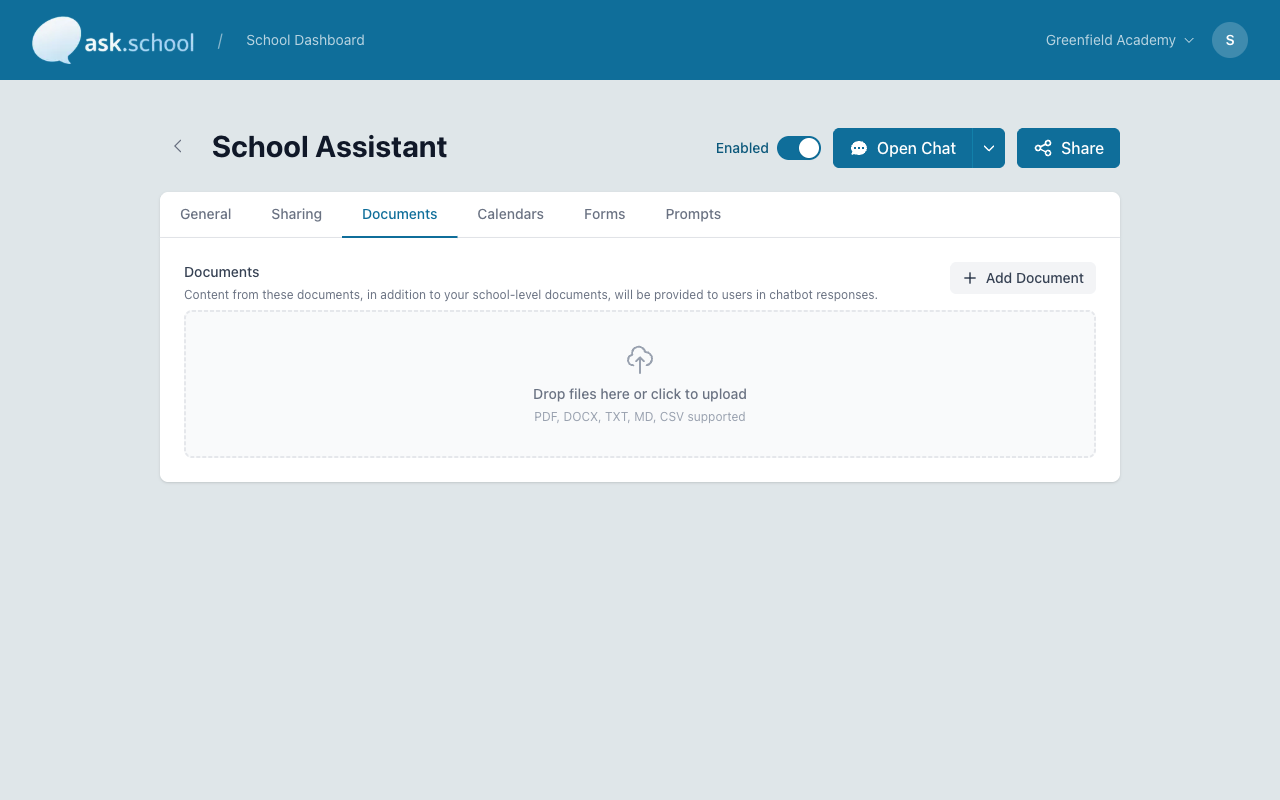
The Documents tab lets you upload documents that are specific to a single chatbot. These work in addition to your school-level documents, giving you fine-grained control over what each chatbot knows.
How to Get There
- Open your chatbot from the Chatbots panel on the dashboard
- Click the Documents tab at the top of the chatbot editor
How Chatbot Documents Work
Your school has two levels of documents:
- School-level documents are uploaded via the main Documents page and are shared across all your chatbots. Every chatbot can draw on this knowledge.
- Chatbot-level documents are uploaded here and are specific to this chatbot only. No other chatbot can see or use them.
Chatbot-level documents work in addition to school-level documents — they do not replace them. The chatbot draws on both when answering questions.
When to Use Chatbot Documents
Use chatbot-level documents when you have information that only applies to one chatbot. For example:
- An IT helpdesk chatbot might have its own troubleshooting guides that the main reception chatbot does not need
- A sixth form chatbot might have UCAS guidance documents that are not relevant to the primary school chatbot
- A staff-only chatbot might have internal policy documents that should not be available to the parents’ chatbot
Uploading Documents
Click the Add Document button or drag and drop files into the upload area. Supported formats are:
- DOCX
- TXT
- MD
- CSV
Documents go through the same processing pipeline and personal data checks as school-level documents. You will be notified if any personal data is detected.
Good to Know
- If you want a document available to all chatbots, upload it on the main Documents page instead. Only use chatbot-level documents for information that is specific to one chatbot.
- Chatbot documents count towards your school’s overall document storage allowance.
- Removing a chatbot document takes effect on the next conversation — it will not affect conversations that are already in progress.
Next Steps
- School Documents — Manage documents shared across all chatbots
- Personal Data — Understand how personal data is detected and handled in documents
- Chatbots — Return to the chatbots overview