
Style Guide
The Style Guide is a list of example question-and-answer pairs that show your chatbot how you want it to communicate. The chatbot studies these examples and matches their tone, vocabulary, level of formality, and sign-off style across every conversation — without copying the answers themselves.
How to Get There
From the School Dashboard, click Style Guide in the left sidebar under Knowledge.
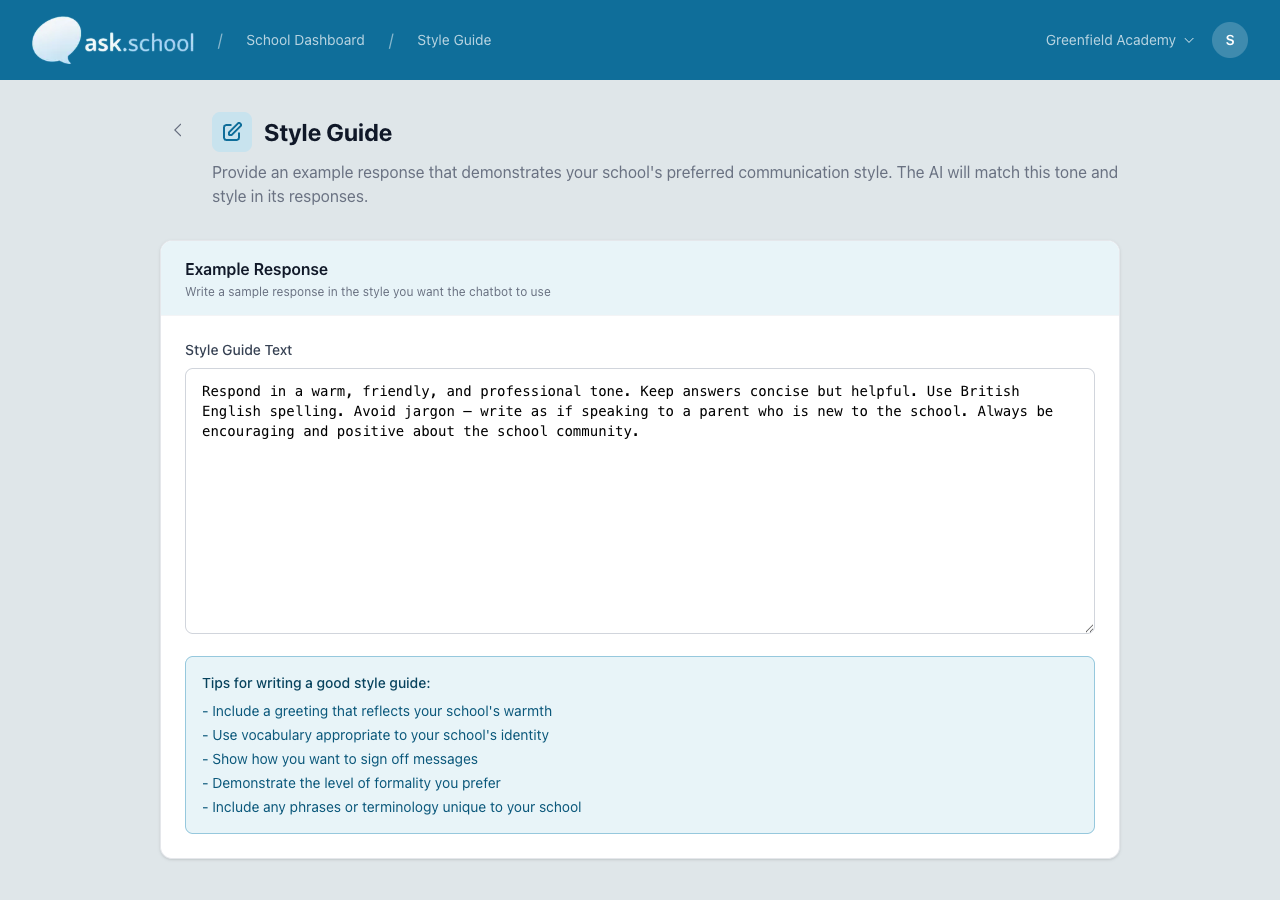 The Style Guide editor with question-and-answer entries
How It Works
Each entry has two fields:
- Question — a question someone might ask the chatbot (e.g. “What time does school start?”)
- Example Response — how you’d want the chatbot to answer that question, written in your school’s voice
You can have as many entries as you like. The chatbot uses the style of your responses — phrasing, tone, sign-offs, vocabulary — as a reference for every reply it gives, even for questions you haven’t included in the guide.
The chatbot doesn't quote your example answers verbatim. It treats them as style references — a model of how you want it to write, not a script of what to say.
Adding a Style Guide Entry
- Go to Style Guide from the sidebar.
- Click Add Style Guide Entry at the bottom of the list.
- Fill in a sample Question.
- Fill in the Example Response in the tone and format you’d like the chatbot to use.
- Click Save Changes in the bar at the bottom of the page.
Repeat for as many examples as you’d like. There’s no required number — even three or four well-written entries will give the chatbot a clear sense of your voice.
 The Add Style Guide Entry button at the bottom of the list
Removing or Editing Entries
- To edit an entry, just change the text in either field. The save bar appears at the bottom of the screen showing you have unsaved changes.
- To remove an entry, click the bin icon in the top right of the entry. Then click Save Changes.
- If you try to leave the page with unsaved changes, you’ll be asked whether you want to discard them.
Tips for Writing Good Entries
Cover the styles you care most about. Pick questions where the way you'd respond matters — the friendly opener, the formal sign-off, the school-specific phrase. Don't bother with questions that have a single factual answer.
Show variety. Mix a warm parent-facing reply with a brisk staff-facing one if your chatbot serves multiple audiences. The chatbot infers the right tone from context.
Include school-specific phrases. If you use particular names for places (e.g. "the Old Hall"), greetings ("Good morning, friends!"), or sign-offs ("Kind regards, the School Office"), put them in your example responses so the chatbot picks them up.
Keep examples realistic. Write the way you'd actually want the chatbot to reply — not idealised marketing copy.
Example: a friendly tone
Question: What time does school start?
Example Response: Good morning! School begins at 8:45 AM, but please aim to be in by 8:30 so there’s time to settle and register. Hope that helps — let us know if you need anything else.
Example: a formal tone
Question: What is the procedure for reporting an absence?
Example Response: To report a pupil absence, please contact the School Office by 8:30 AM on the morning of the absence by telephoning 020 7946 0000 or emailing [email protected]. A note explaining the absence is required upon the pupil’s return.
Example: brief and direct
Question: When are half-term holidays?
Example Response: Half-term runs from Monday 27 October to Friday 31 October. Pupils return on Monday 3 November.
Good to Know
- The Style Guide applies to all chatbots in your school. Individual chatbots can override or add to it via their own system prompts.
- Changes take effect immediately after saving — no restart required.
- If you leave the Style Guide empty, the chatbot will use a neutral, helpful default tone.
- The order of entries doesn’t matter — the chatbot reads them as a set of references.
- Empty entries (where both the question and the answer are blank) are dropped automatically when you save.
Next Steps
- Creating Chatbots — Set up chatbots with custom system prompts
- School Knowledge — Add Q&A pairs that drive what the chatbot says, not how
- School Profile Settings — Other school-wide configuration