
Security & 2FA
The Security page lets you manage your account’s security settings, including two-factor authentication (2FA) and social login connections.
How to Get There
Click your user menu (the circle icon in the top-right corner) and select Security to open this page.
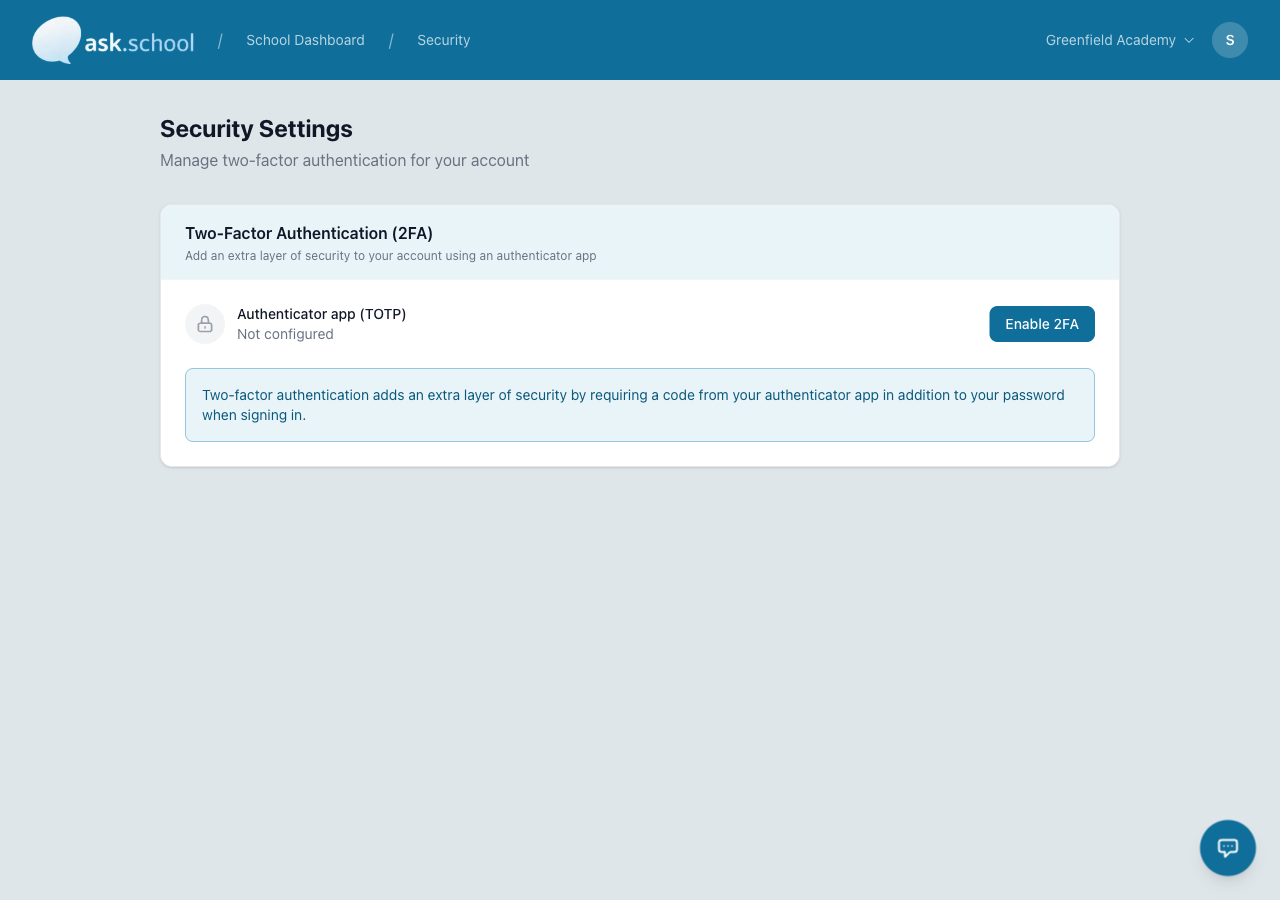 The Security settings page showing two-factor authentication configuration
Two-Factor Authentication (2FA)
Two-factor authentication adds an extra layer of security to your account. When enabled, you’ll need both your password and a code from your authenticator app to log in.
Setting up 2FA
- Go to Settings → Security.
- Click Enable Two-Factor Authentication.
- Scan the QR code with your authenticator app (e.g., Google Authenticator, Microsoft Authenticator, Authy).
- Enter the 6-digit code shown in your authenticator app to confirm.
- 2FA is now active on your account.
Logging in with 2FA
- Enter your email and password as normal.
- You’ll be prompted for a verification code.
- Open your authenticator app and enter the current 6-digit code.
- You have 5 minutes to enter the code before it expires.
- After 5 failed attempts, you’ll need to start the login process again.
Disabling 2FA
- Go to Settings → Security.
- Click Disable Two-Factor Authentication.
- Confirm the action.
Disabling 2FA reduces the security of your account. We recommend keeping it enabled, especially for accounts with safeguarding or admin access.
Social Login
Ask.School supports signing in with your existing Google or Microsoft account. This is convenient if your school uses Google Workspace or Microsoft 365.
Supported providers
| Provider | Notes |
|---|---|
| Works with any Google account, including Google Workspace (school) accounts | |
| Microsoft | Works with Microsoft 365 and personal Microsoft accounts |
How it works
- On the login page, click Sign in with Google or Sign in with Microsoft.
- You’ll be redirected to the provider’s login page.
- Sign in with your account and grant permission.
- You’ll be returned to Ask.School, logged in.
Important notes
- Social login is only available if you have been invited to a school on Ask.School. You cannot create a new account through social login alone.
- If your email address matches an existing invitation or account, the social login will be connected automatically.
- You can connect multiple social accounts to the same Ask.School account.
Data security
Ask.School takes data security seriously:
- Encryption — Sensitive personal information (names, emails, phone numbers) is encrypted at rest.
- Row-Level Security — Each school’s data is isolated at the database level. Schools cannot see each other’s data.
- Session management — Login sessions are secured and managed through encrypted cookies.
- Rate limiting — Login attempts are rate-limited to prevent brute-force attacks.
Good to Know
- We recommend all staff accounts enable 2FA, especially those with safeguarding or admin permissions.
- Social login does not bypass 2FA — if you have 2FA enabled, you’ll still need your authenticator code.
- If you lose access to your authenticator app, contact your school’s administrator for help.
Next Steps
- Forgotten Password — Reset your password if you’ve forgotten it
- Managing Users — Invite and manage user accounts
- User Groups — Set up permissions
- Personal Data — How Ask.School handles personal information
- School Profile Settings — General school configuration