
Billing & Subscription
The Billing section lets you manage your school’s subscription, adjust your student quota, and access invoices and payment settings.
How to Get There
Click the Ask.School logo in the top-left of any page, then click Subscribe in the Billing section of the Account page. Billing covers all schools on your account.
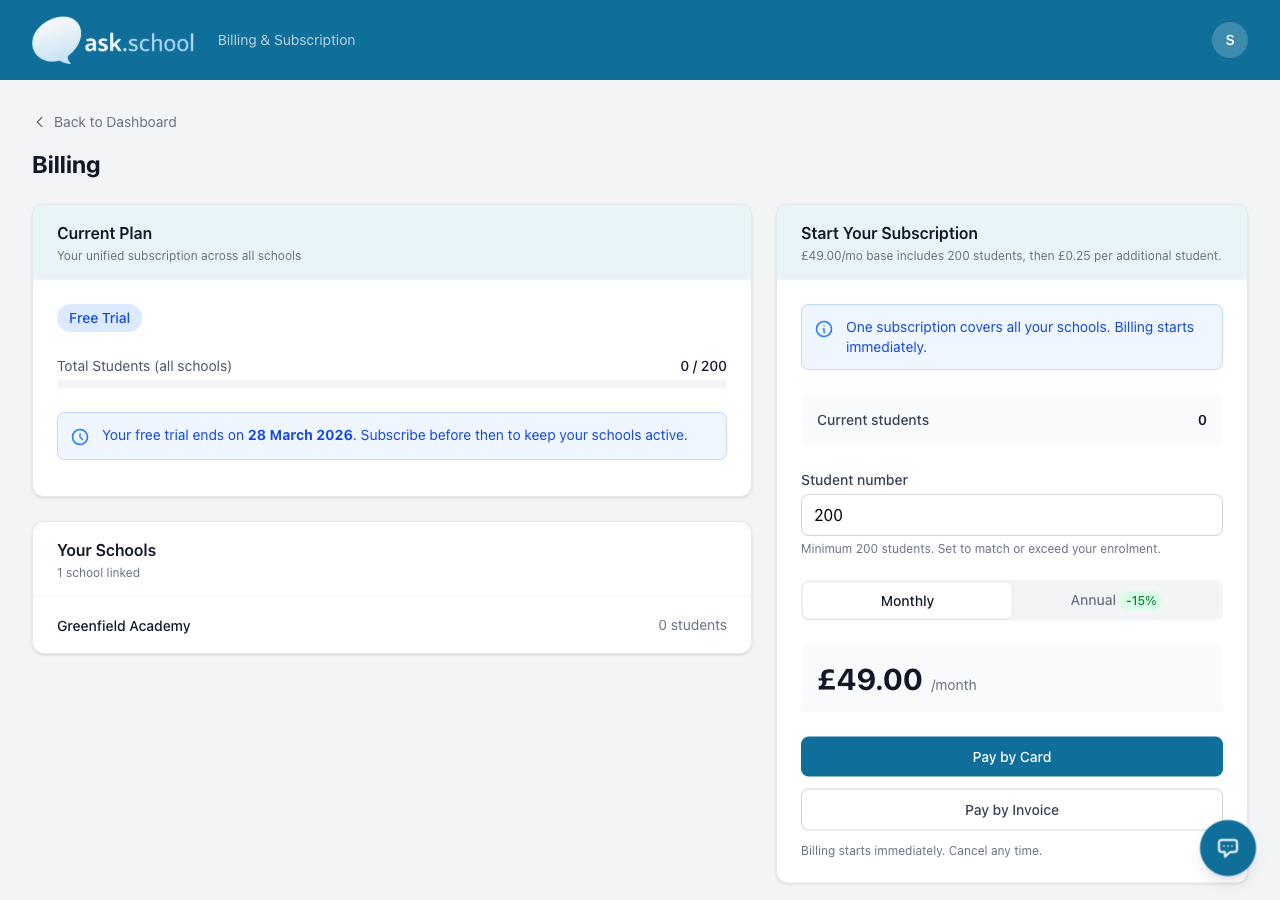 The Billing page showing your current plan, subscription details, and payment options
Pricing
Ask.School uses a simple per-student pricing model:
- Base cost — includes up to 200 students
- Additional students — a small per-student charge for each student above 200
- Annual billing — save 15% compared to monthly billing
- All prices are in GBP (£)
For current pricing, visit the billing page in your dashboard or contact Ask.School.
Free trial
Every new school gets a 14-day free trial with up to 200 students. During the trial you have full access to all features.
When the trial ends:
- Chatbots are suspended until you subscribe.
- Your data, documents, and configuration are preserved — nothing is deleted.
- Subscribe at any time to re-enable your chatbots.
Subscribing
- Go to Billing from the sidebar.
- Choose Monthly or Annual billing (annual saves 15%).
- Set the number of students your school needs.
- Click Pay by Card to pay immediately via Stripe Checkout, or Pay by Invoice to receive an invoice.
Once subscribed, your chatbots are activated and your plan details appear on the billing page.
Your current plan
The billing page shows:
- Plan status — Active, Trial, Past Due, or Inactive
- Billing period — Start and end dates
- Payment method — Card ending in ####, Invoice, or not yet set
- Next payment — Amount and date
- Student quota — A progress bar showing how many students you have versus your quota
Managing your student quota
Adding students
If you need more student places:
- Go to Billing.
- Enter the new student number in the Update Students section.
- Click Add Students.
- The additional cost is prorated — you only pay for the remainder of the current billing period.
Reducing students
To reduce your student quota:
- Enter a lower student number.
- Click Reduce Students.
- The change takes effect at the start of your next billing period.
Overage warnings
If your actual student count exceeds your quota by more than 5%, you’ll see a warning on the billing page. Persistent overage may result in chatbots being suspended until the quota is increased.
Billing portal
Click Manage Billing to open the Stripe-powered billing portal where you can:
- View and download invoices
- Update your payment method
- Change your billing details
- Cancel your subscription
Invoices
Click View Invoices to see a list of all invoices for your account, including status, amounts, and download links.
Usage costs
Ask.School tracks AI usage costs separately from your subscription:
- Each message uses AI tokens (input and output)
- Costs are calculated based on the AI model and current pricing
- A 10% markup and 20% VAT (UK) are applied
- Daily and monthly usage summaries are available
Good to Know
- Billing is at the account level — a single billing account can cover multiple organisations.
- Ask.School uses Stripe for all payments. Your card details are never stored on our servers.
- Currency conversion is available for non-GBP payments.
- If your subscription lapses or invoices are overdue, chatbots may be disabled until payment is resolved.
- Plan upgrades (adding students) are prorated. Reductions apply from the next billing period.
Next Steps
- Usage Statistics — View your usage overview
- School Profile Settings — General school configuration
- Security & 2FA — Account security settings