
Multiple Schools & School Sites
As your organisation grows, you may need to manage more than one school on Ask.School — or you may simply have a school that operates across multiple physical locations. This guide explains the difference between adding a new school and adding a school site, and when to use each.
Schools vs. School Sites
Ask.School gives you two ways to organise multiple locations:
| Separate School | School Site | |
|---|---|---|
| Own dashboard | Yes — each school has its own dashboard, chatbots, and settings | No — sites are managed within a single school |
| Own chatbots | Yes — completely independent chatbots with separate knowledge | No — chatbots are shared across all sites |
| Own documents | Yes — each school uploads and manages its own documents | Shared — documents belong to the school, not individual sites |
| Own users | Yes — each school has its own user list and groups | No — users belong to the school, not individual sites |
| Own billing | No — one subscription covers all your schools | N/A |
| Safeguarding | Separate — each school has its own safeguarding alerts and email | Each site can have its own safeguarding email |
| MIS integration | Separate — each school connects its own Wonde instance | N/A |
When to add a separate school
Add a new school when the location is genuinely independent — with its own staff, its own policies, and its own identity. Common examples:
- A Multi-Academy Trust (MAT) managing several schools, each with different branding, policies, and staff teams
- A school group with a primary school and a secondary school that operate as separate institutions
- An international school with campuses in different countries, each following different curricula
- A test or staging school for trying out new chatbot configurations before rolling them out
Each school gets its own dashboard, its own chatbots, its own documents, and its own school knowledge. Nothing is shared between schools — they are completely separate.
When to add a school site
Add a school site when the locations are part of the same school — sharing the same leadership, students, and staff. Common examples:
- A split-site school with a lower school and an upper school on different roads
- A school with a main campus and a sports ground at a separate address
- A sixth form centre that’s physically separate but part of the same school
- A school that has recently merged with another and wants to keep both addresses visible
School sites share everything — the same chatbots, documents, school knowledge, and users. The main benefit is that chatbots can give location-specific answers (e.g. “The lower school is at 10 Park Lane” vs. “The upper school is at 25 High Street”), and the chatbot can recognise when users mention an alternative name for a site.
Adding a Second School
To add a new school:
- Click your school name in the top-right corner of the navigation bar to open the school switcher dropdown.
- Click + Add New School.
- Follow the Creating Your School steps — enter the organisation name, slug, website URL, and main school email.
- You’ll be taken to the new school’s empty dashboard, ready to set up.
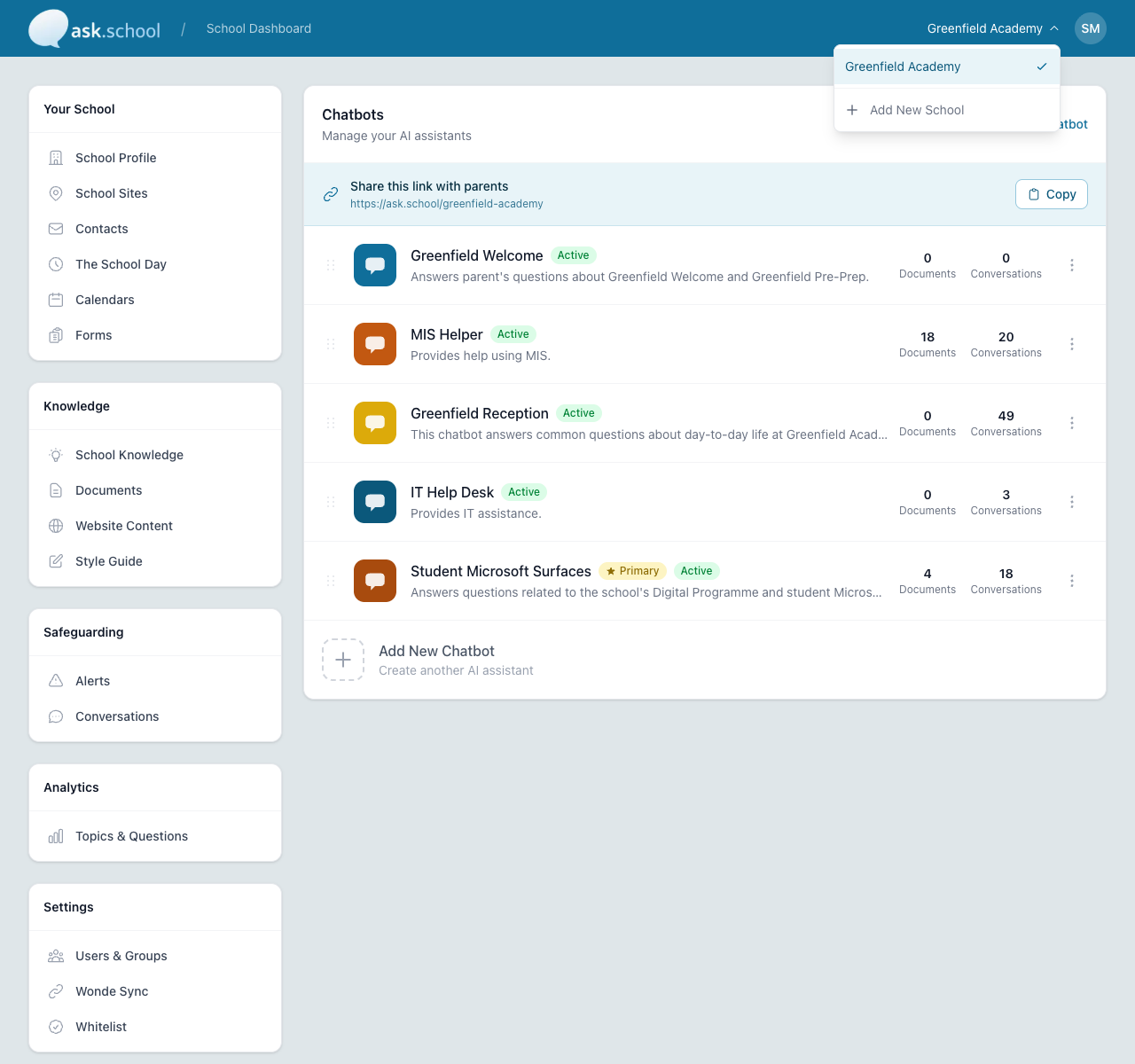 The school switcher dropdown with the option to add a new school
Switching Between Schools
Once you have more than one school, the school switcher dropdown in the top-right corner lists all your schools. Click any school name to switch to its dashboard.
Each school is completely independent — switching schools changes your entire view to that school’s dashboard, chatbots, documents, users, and settings.
Managing School Sites
School sites are managed on a dedicated page. From the School Dashboard, click School Sites in the left sidebar under Your School.
The page lists every site for your school. Each card shows the site’s name, alternative names (used to help the chatbot recognise references), description, address, phone number, contact email, safeguarding email, and website link.
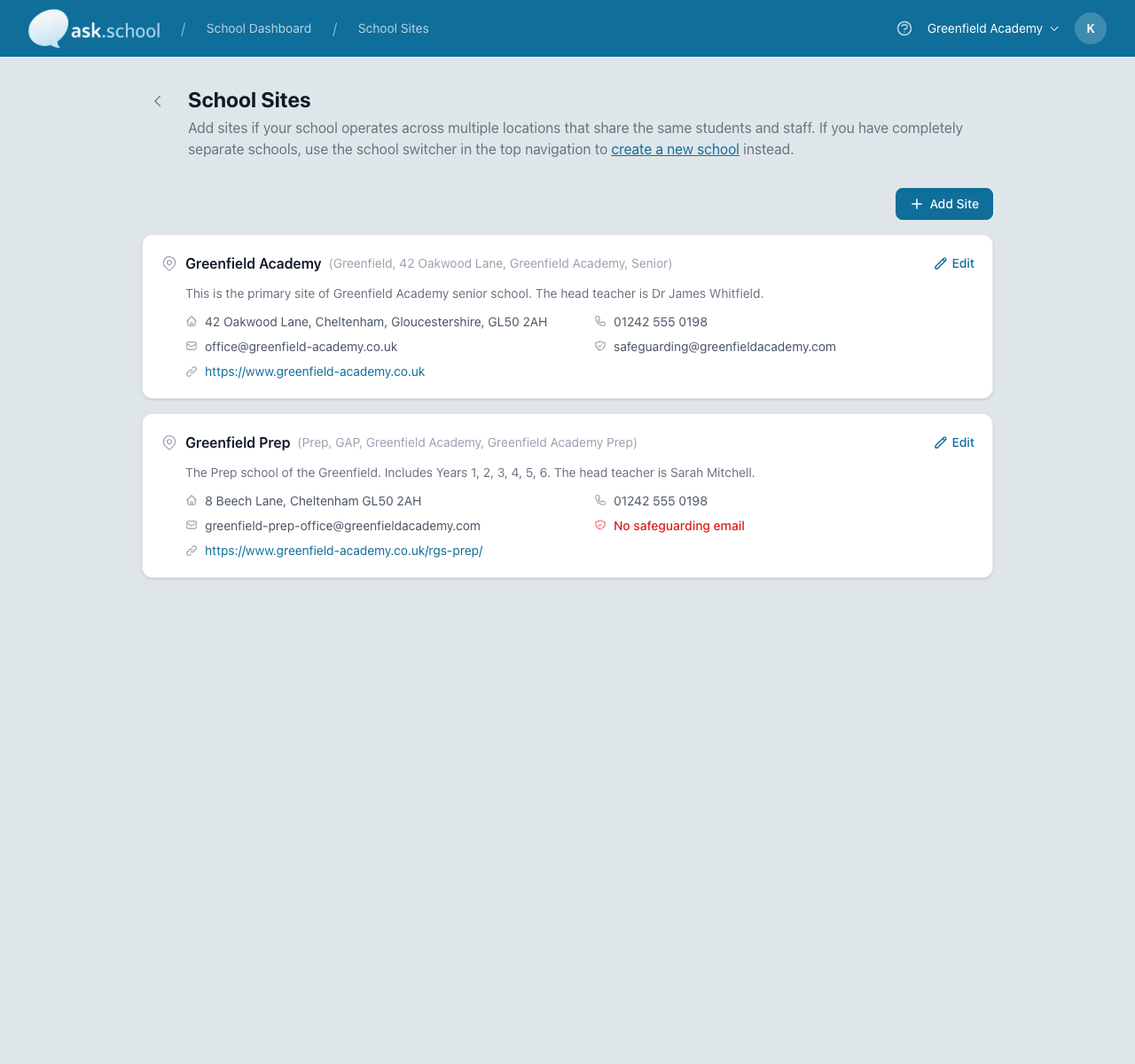 The School Sites page showing the primary site and a secondary site
Adding a Site
- Click the + Add Site button in the top right.
-
A New Site form appears below the existing sites with the following fields:
- Site Name (required) — The name of this site (e.g. “Main Campus”, “Junior School”).
- Alternative Names — Other names users might use for this site, comma-separated (e.g. “Senior School, Upper School”). The chatbot uses these to recognise when users refer to the site by a different name.
- Description — A short description of the site that the chatbot can use in answers.
- Address — The full postal address.
- Telephone — The site’s main phone number.
- Email — A contact email address for general enquiries to this site.
- Safeguarding Email — Where safeguarding alerts for conversations linked to this site should be sent. Leave blank to use the school’s default safeguarding email.
- More Information Link — Optional link to a page about this site (e.g. on your school website).
- Click Save Changes in the sticky bar at the bottom of the page to save the new site.
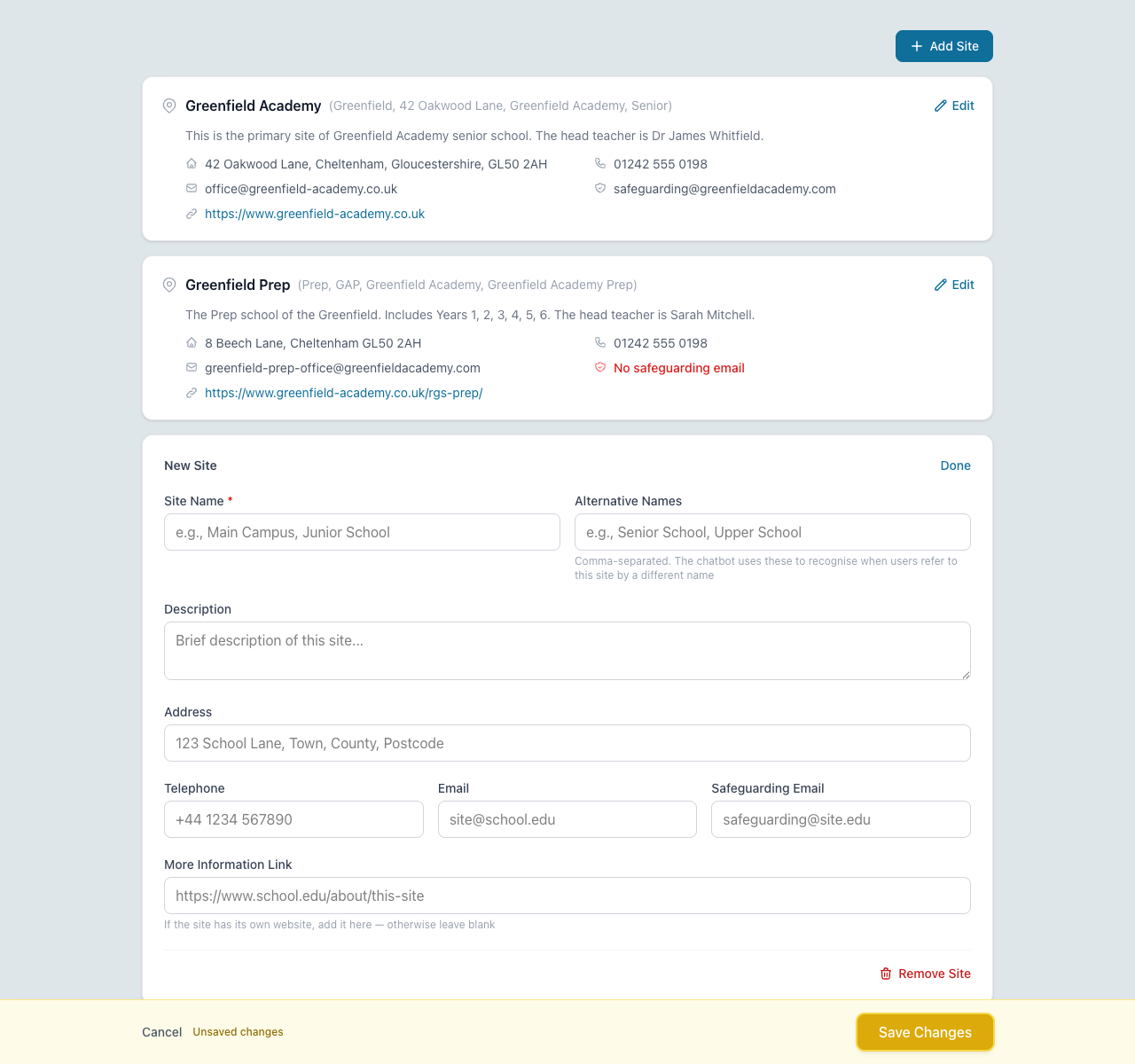 The Add Site form expanded inline below the existing sites
You can add as many sites as you need. The first site you create is automatically treated as the primary site — it’s the default location used in chatbot responses unless the user specifies otherwise.
Editing or Removing a Site
- Edit — Click the Edit link on any site card to expand its details for editing. Click Save Changes when done.
- Remove — Open the site for editing and click Remove Site at the bottom of its panel.
Quick Decision Guide
Not sure which option to use? Ask yourself these questions:
- Do the locations share the same headteacher or principal?
- Yes → School site
- No → Separate school
- Do the locations share the same policies (behaviour, uniform, safeguarding)?
- Yes → School site
- No → Separate school
- Would staff at one location need to manage chatbots for the other?
- Yes → School site (shared dashboard)
- No → Separate school
- Do the locations have separate Ofsted/inspection registrations?
- Yes → Separate school
- No → School site
- Do parents and students identify with the overall school name, or with a specific location?
- Overall name → School site
- Specific location → Separate school
Billing
All schools on your account are covered by a single subscription. Your student count is the total across all schools. See Billing & Subscription for pricing details.
Next Steps
- Creating Your School — Set up a new school
- The Dashboard — Learn about the school switcher and navigation
- School Profile Settings — Configure your school’s basic information and profile description