
Forgotten Password
If you’ve forgotten your Ask.School password, you can reset it yourself using your email address. You’ll request a reset link, check your inbox, and choose a new password — the whole process takes just a couple of minutes.
Step 1: Go to the Login Page
Visit ask.school/login and look for the Forgot your password? link below the password field. Click it to start the reset process.
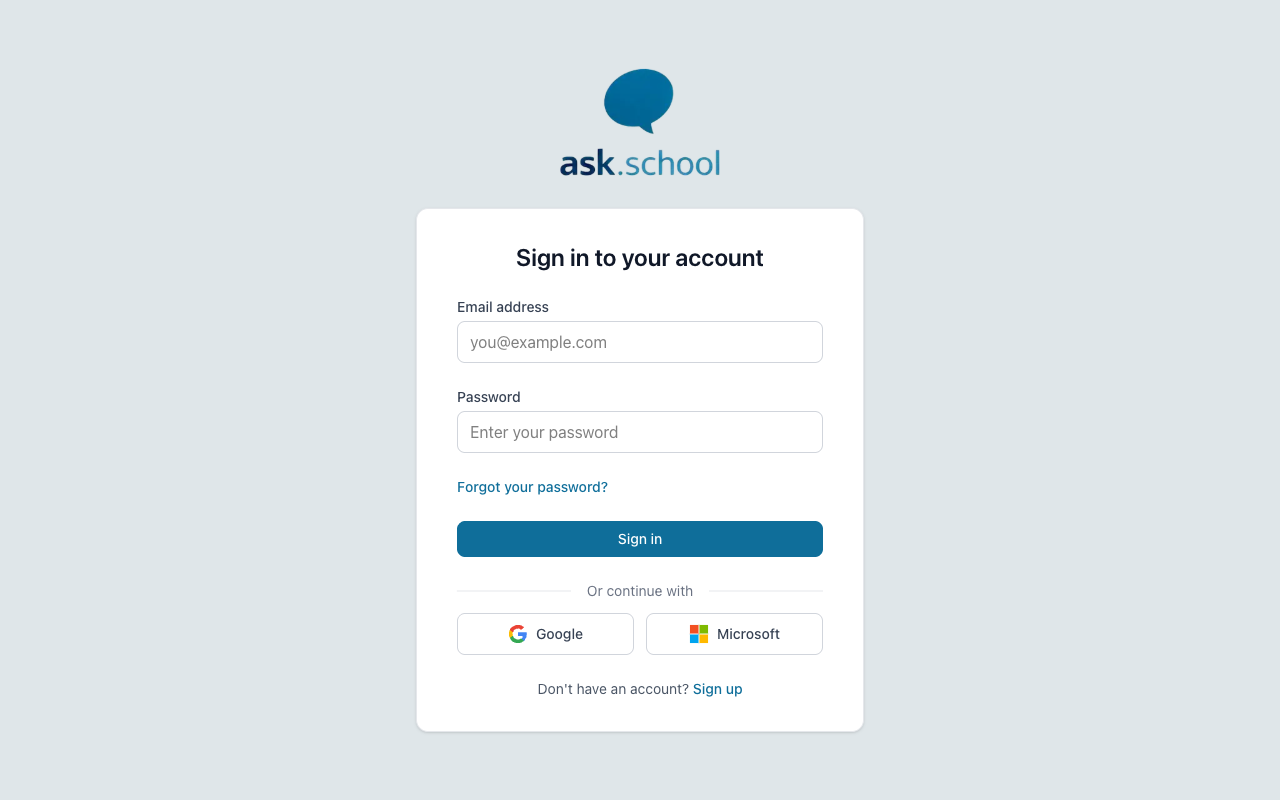 The login page with the “Forgot your password?” link
Step 2: Enter Your Email Address
On the password reset page, type in the email address you use to sign in to Ask.School, then click Send reset link.
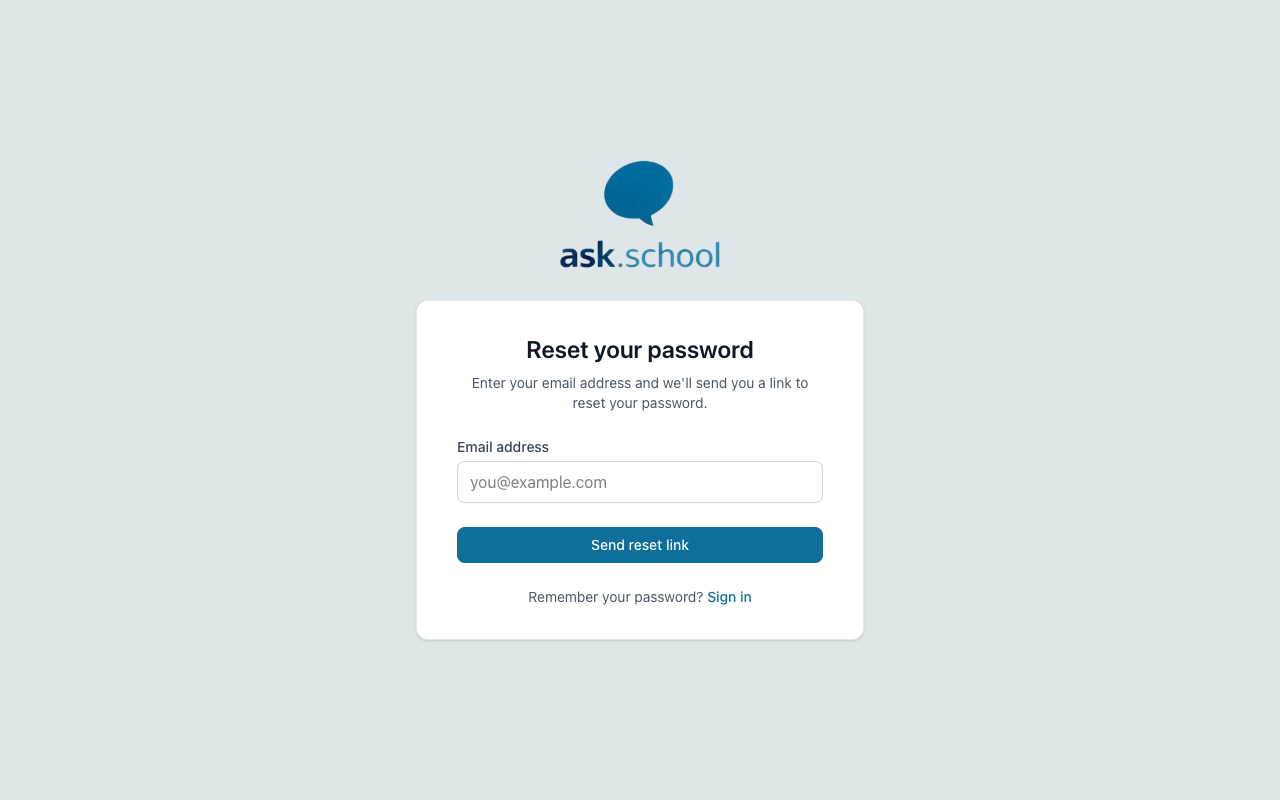 The password reset page
Step 3: Check Your Email
After clicking the button, you’ll see a confirmation screen. Check your email inbox for a message from Ask.School containing a password reset link.
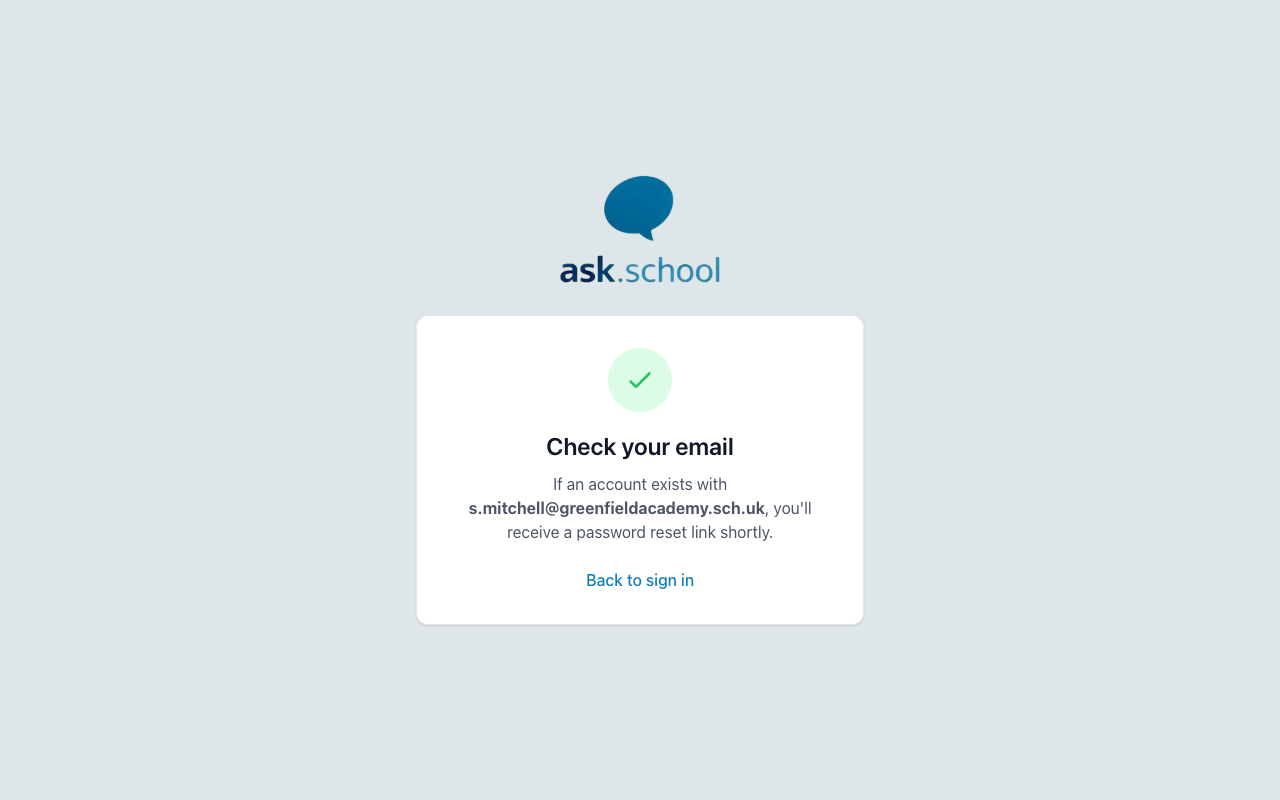 The confirmation screen after requesting a reset link
Step 4: Choose a New Password
Click the link in the email to open the password reset form. Enter your new password and confirm it by typing it again, then click Reset password.
- New password — Your new password. It must be at least 12 characters long.
- Confirm new password — Re-enter the same password to make sure it matches.
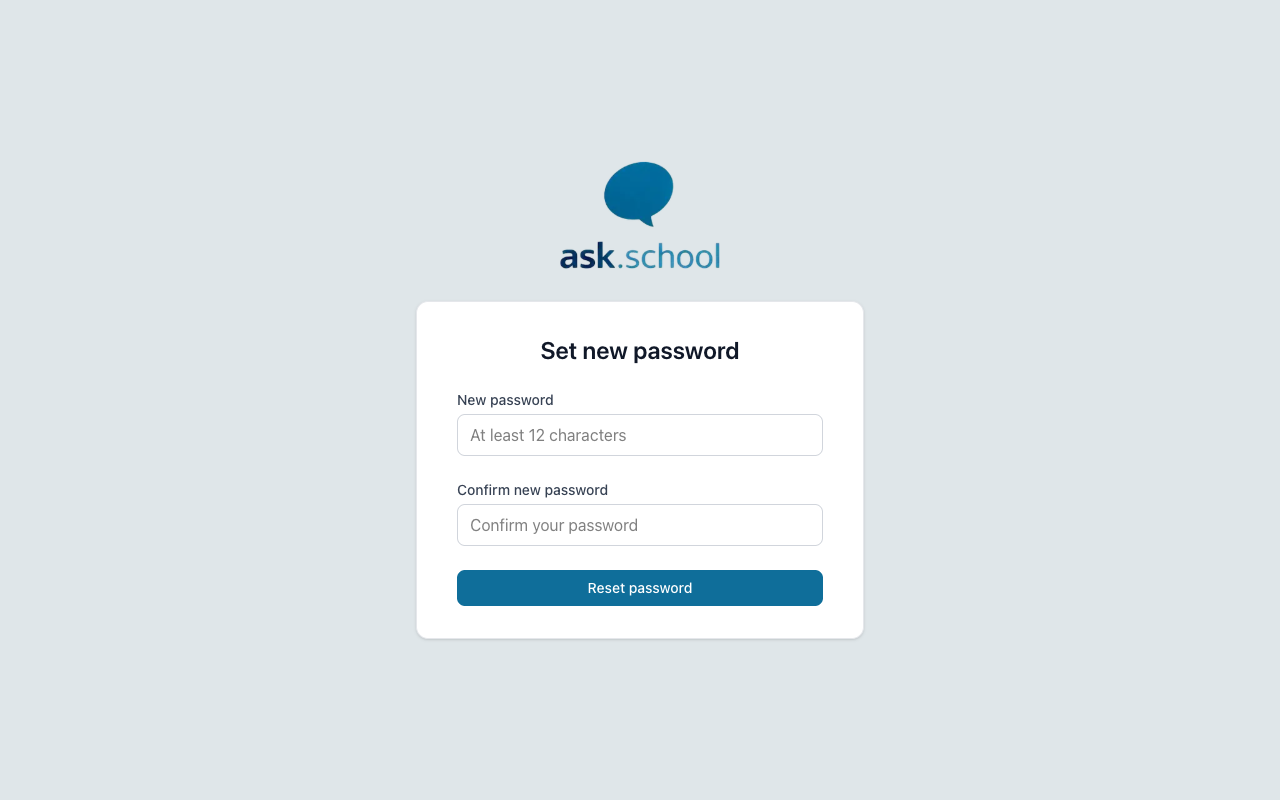 The password reset form where you choose your new password
Step 5: Sign In With Your New Password
Once your password has been updated, you’ll see a success message. Click Sign in to return to the login page and sign in with your new password.
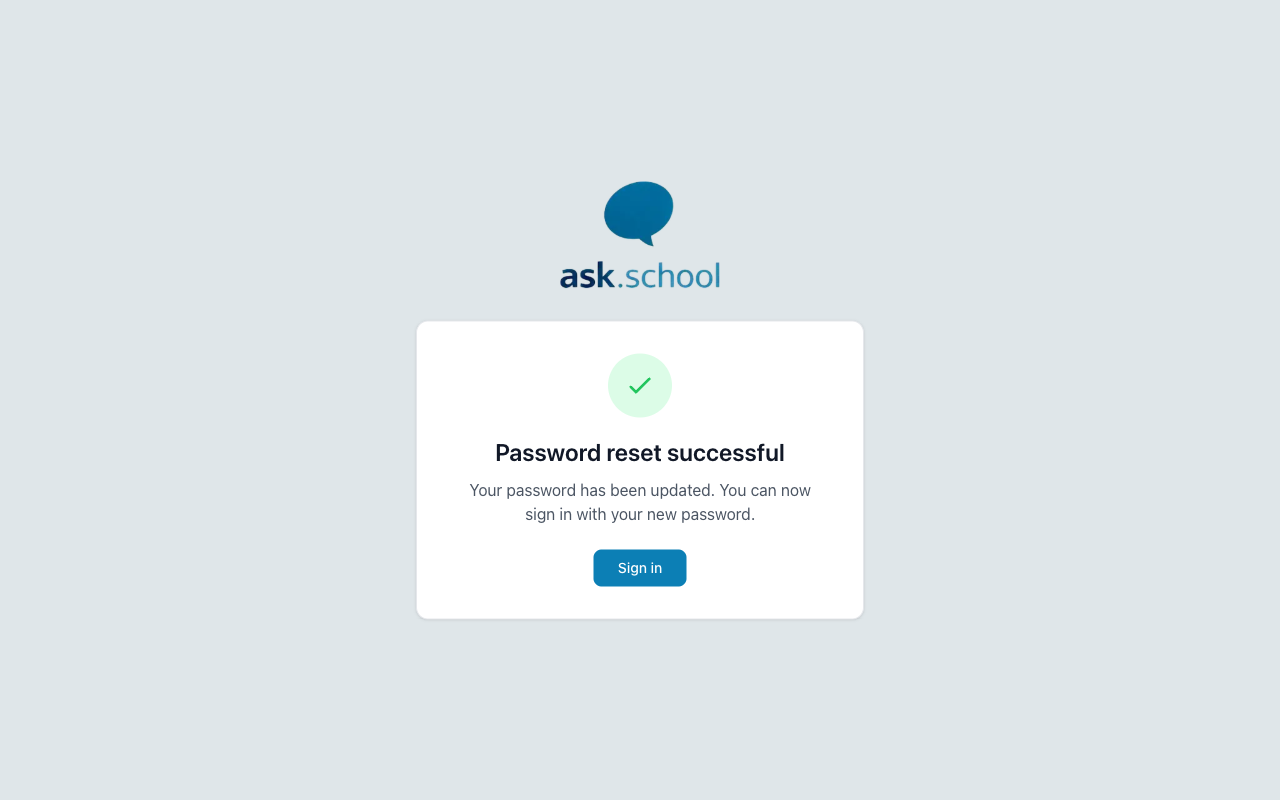 The success screen confirming your password has been reset
Good to Know
- For security, the confirmation screen always shows the same message whether or not an account exists with that email address. If you don’t receive an email, double-check you’re using the right address.
- If you sign in with Google or Microsoft (social login), you don’t have an Ask.School password to reset. Use the Sign in with Google or Sign in with Microsoft button on the login page instead.
- Your new password must be at least 12 characters. Use a mix of letters, numbers, and symbols to keep your account secure.
- If you continue to have trouble signing in after resetting your password, contact your school’s Ask.School administrator for help.
Next Steps
- Security & 2FA — Set up two-factor authentication for extra account security
- Signing Up — Register a new account if you don’t have one yet