
Creating Your School
Once you’ve signed up and verified your email, you’ll need to create your school profile. This connects your account to your school and unlocks the dashboard where you’ll manage chatbots, documents, and settings.
Step 1: Click “Create a New School”
After signing in for the first time, you’ll see a welcome screen confirming your account is ready. Click the + Create a New School button to begin.
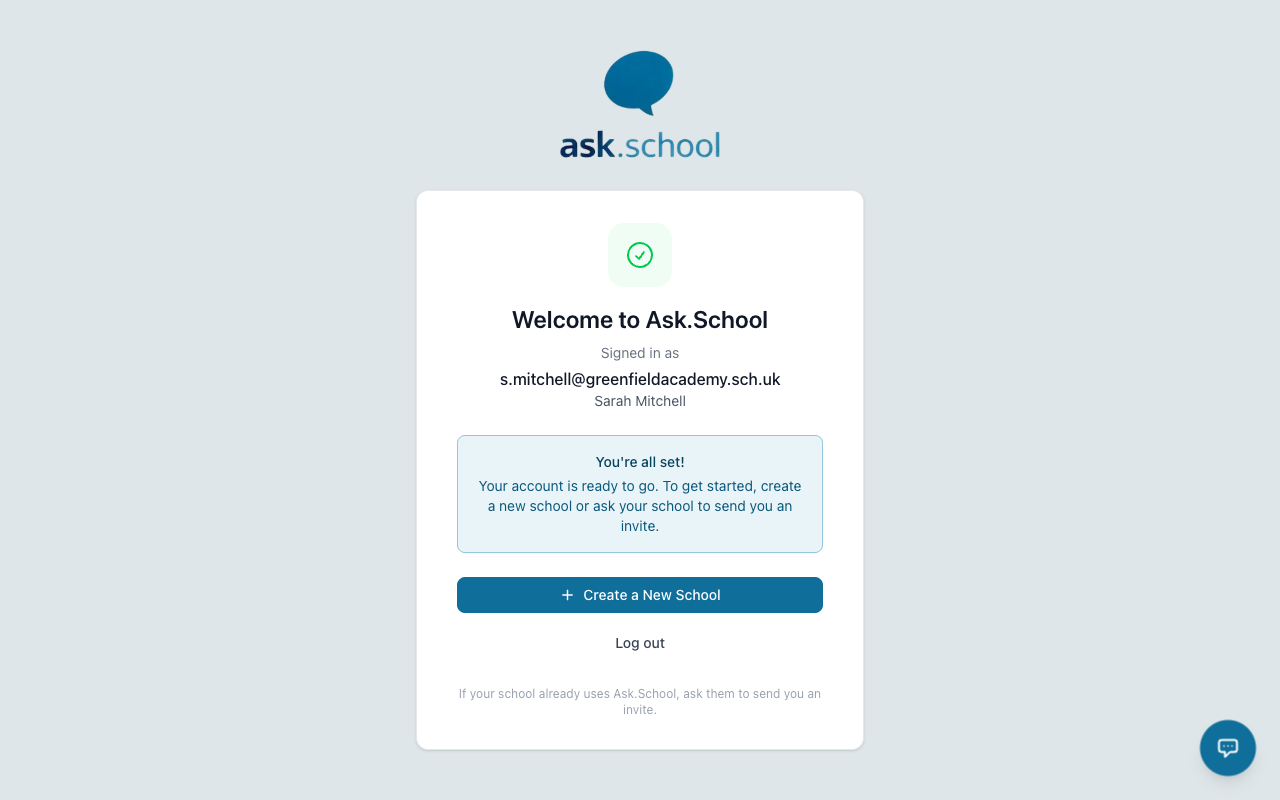 The welcome screen after signing in for the first time
Step 2: Enter Your School Details
You’ll see a short Set Up Your School form with four fields:
- Organisation Name (required) — Your school’s full name as you’d like it to appear across the platform (e.g. “Greenfield Academy”).
- Organisation Slug (required) — A short, unique identifier used in your school’s URL (e.g.
greenfield-academy). This is generated automatically from your school name but you can edit it. It cannot be changed after creation. - Website URL (required) — Your school’s main website address. Ask.School uses this to learn about your school and improve chatbot responses.
- Main School Email (required) — Your school’s general office email. This is the default destination for form submissions and system notifications when no specific address is configured for that purpose.
If you’d rather come back to this later, click I’ll do this later to skip — you can return to school setup at any time.
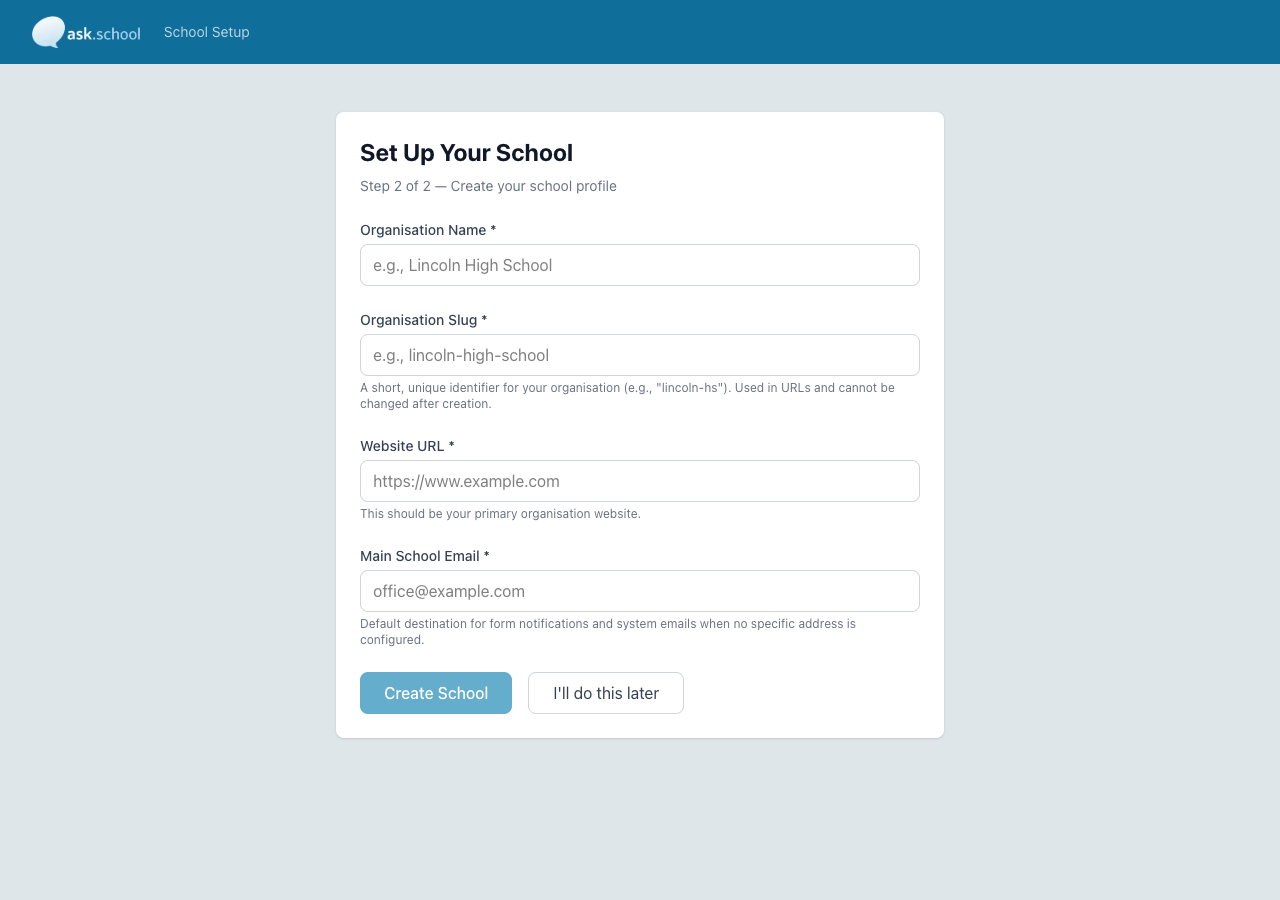 The Set Up Your School form
Step 3: Review and Submit
Once all four fields are filled in, check that the slug shows Available in green — this confirms no other school is using that identifier. The Create School button becomes active once everything is valid. Click it to create your school.
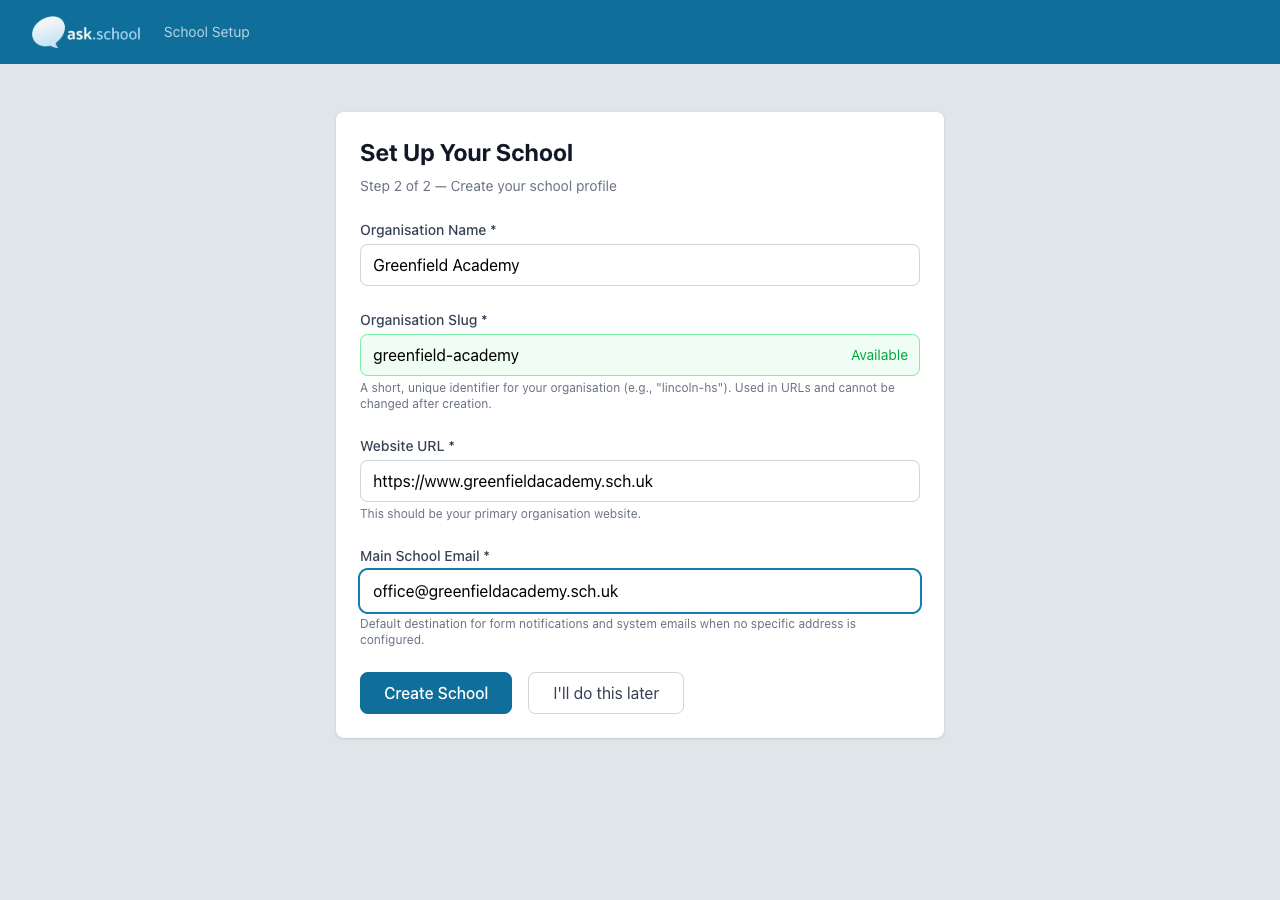 The completed form with the slug confirmed as Available and the Create School button active
Step 4: Your School Dashboard
After creating your school, you’ll be taken straight to your School Dashboard. This is your home screen for managing everything — chatbots, knowledge, documents, calendars, users, safeguarding alerts, and more.
You’ll also see a banner at the top showing your free trial period. Your school starts with a 14-day free trial so you can explore the platform before subscribing.
See The Dashboard for a full tour of the sidebar sections and the chatbots panel.
Next Steps
- The Dashboard — Tour your new School Dashboard
- School Profile Settings — Configure your school’s basic information and profile description
- Documents — Upload policies, handbooks, and other documents for your chatbots to reference
- Creating Chatbots — Set up your first AI chatbot