
Chatbot Forms
The Forms tab lets you enable pre-built form templates that the chatbot can present to users during a conversation. Forms turn chatbot conversations into structured submissions that reach the right person at your school.
How to Get There
- Open your chatbot from the Chatbots panel on the dashboard
- Click the Forms tab at the top of the chatbot editor
For school-wide form template management — including creating custom forms — see the school-level Forms page.
Features
Form Templates
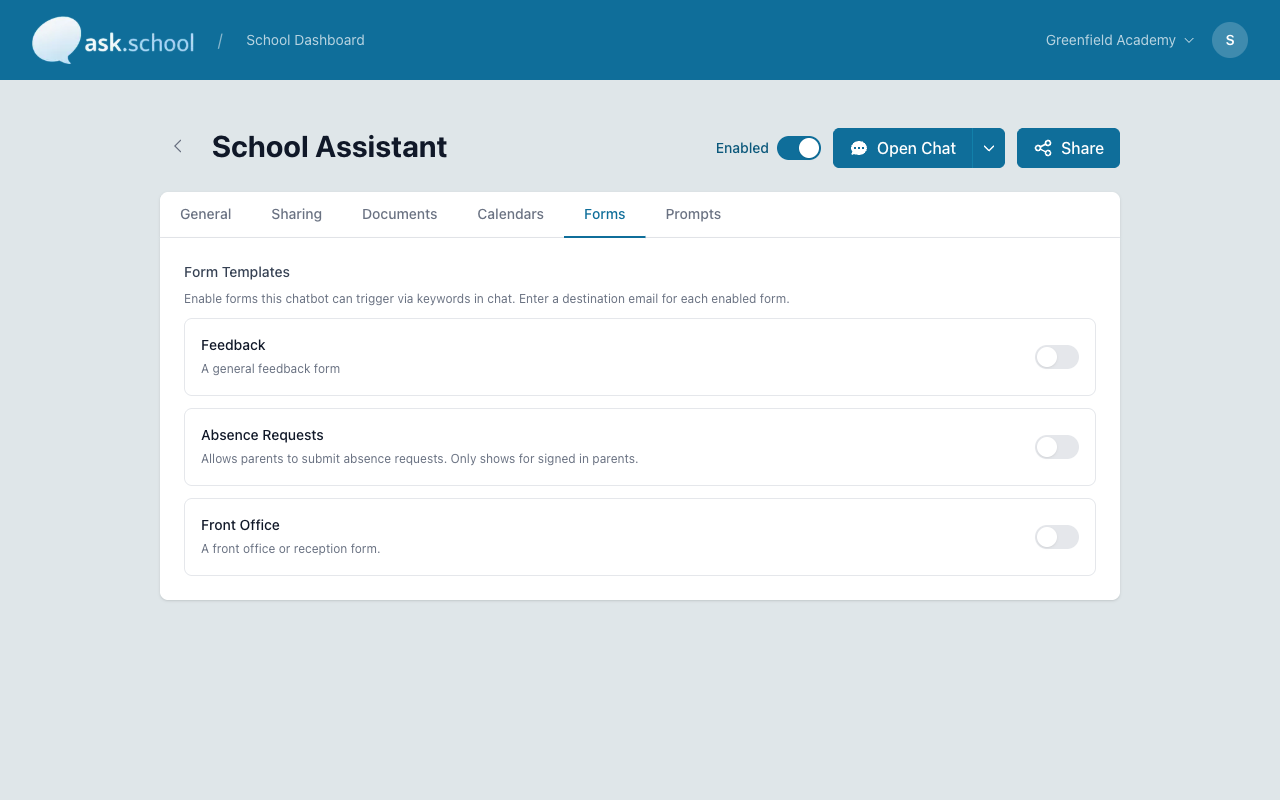
The Forms tab shows pre-built form types that the chatbot can present to users. Each form has a name, a description, and a toggle switch to enable or disable it.
When a form is enabled, the chatbot can trigger it based on keywords during conversation. For example, if a parent asks “I need to report an absence”, the chatbot can present the absence request form inline.
Available Form Templates
Built-in (Global) templates:
- Feedback — A general feedback form for collecting user opinions.
- Absence Requests — Lets signed-in parents submit absence requests through the chatbot.
- Front Office — A front office or reception form for general enquiries.
- Contact the school — Shown when the chatbot can’t answer a question from school knowledge; submissions go to the school’s contact email.
In addition to the built-in templates, custom forms you’ve created on the school-level Forms page also appear here for selection on this chatbot.
Destination Email
When you enable a form, you can set an email address where form submissions are sent. This means responses go straight to the right person — for example, absence requests can go to the attendance officer, while front office forms go to reception.
Good to Know
- Forms are a way to handle requests that go beyond what the chatbot can answer on its own. Instead of the chatbot saying “please email the school office”, it can present a form right there in the conversation.
- The Absence Requests form requires users to be signed in as a parent. If a non-parent user tries to trigger it, the chatbot will not present the form.
- You can enable different forms on different chatbots. A parents’ chatbot might have Absence Requests and Feedback enabled, while a staff chatbot might only have Feedback.
- Form submissions are sent by email and are not stored in Ask.School. Make sure the destination email address is correct and monitored.
Next Steps
- Chatbots — Return to the chatbots overview
- Chat Interface — Learn about the user-facing chat experience