
Calendars
Calendars let you connect external calendar feeds so your chatbot can answer questions about upcoming events, term dates, fixtures, and more.
How to Get There
From the School Dashboard, click Calendars in the left sidebar under Your School.
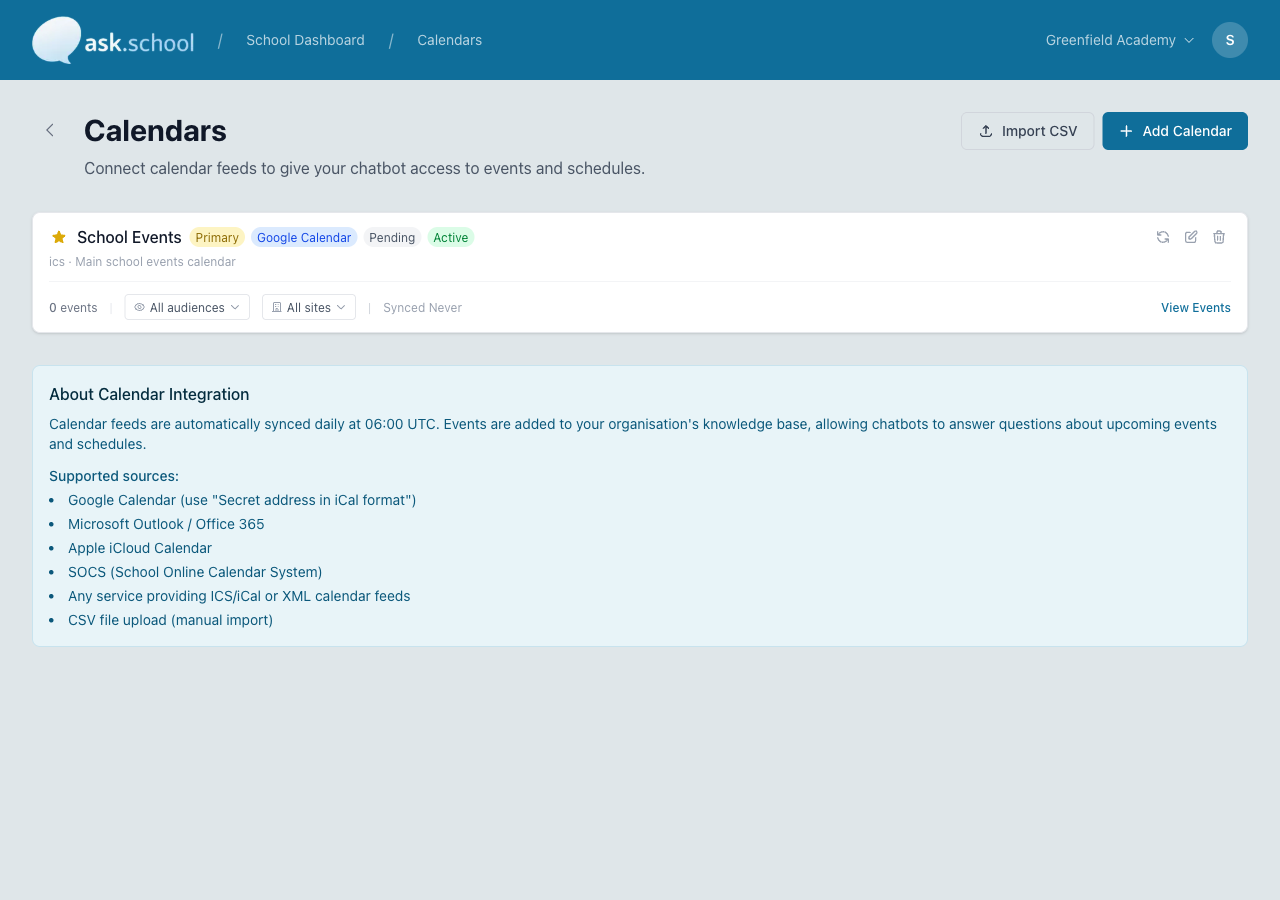 The Calendars page showing connected calendar feeds with sync status
What it does
You add calendar feed URLs from services like Google Calendar, Microsoft Outlook, or your school’s SOCS system. Ask.School reads these feeds, imports the events, and makes them available to your chatbot.
Supported sources
| Source | Feed format |
|---|---|
| Google Calendar | ICS (iCal) |
| Microsoft Outlook | ICS (iCal) |
| Apple iCloud | ICS (iCal) |
| SOCS | XML |
| Any ICS/iCal feed | ICS (iCal) |
You can also import events from a CSV file if your calendar system doesn’t offer a feed URL.
Adding a calendar feed
- Go to Calendars from the sidebar.
- Click Add Calendar Feed.
- Paste the feed URL from your calendar provider.
- Choose a category for the feed — this helps organise events. Categories include:
- School Calendar
- Academic
- Events
- Sports
- Arts & Culture
- Exams
- Holidays
- Parent Events
- Sport Fixtures/Results
- Co-Curricular
- Music Lessons
- And more
- Click Save.
The feed will be processed and events imported within a few minutes.
How to find your calendar feed URL
Google Calendar
- Open Google Calendar.
- Click the three dots next to the calendar name → Settings and sharing.
- Scroll down to Integrate calendar.
- Copy the Public address in iCal format URL.
Microsoft Outlook
- Open Outlook on the web.
- Go to Settings → View all Outlook settings → Calendar → Shared calendars.
- Under Publish a calendar, select the calendar and choose ICS.
- Copy the link.
SOCS
- Log in to your SOCS admin panel.
- Find the XML or iCal feed URL for the calendar you want to connect.
- Copy the feed URL.
Sync schedule
Calendar feeds sync automatically once a day at 6:00 AM (UTC). This means new events added to your external calendar will appear in Ask.School within 24 hours.
You can also refresh a feed manually at any time by clicking the refresh button next to the feed.
Events are synced up to one year into the future by default. Your school administrator can adjust this window in the school settings.
CSV import
If your calendar doesn’t offer a feed URL, you can import events from a CSV file:
- Go to Calendars.
- Click Import CSV.
- Upload a CSV file with columns for event name, date, start time, end time, and description.
- Review the imported events.
Feed status
Each feed shows its current status:
- Pending — Waiting to be processed
- Processing — Currently importing events
- Completed — Events imported successfully
- Failed — Something went wrong (check the feed URL is correct and accessible)
Audience permissions
Like School Knowledge entries, each calendar feed can be targeted to specific audiences:
| Audience | Who sees events |
|---|---|
| Students | Student users |
| Staff | Staff users |
| Parents | Parent/carer users |
| Others | Governors, visitors, external users |
| Public | Anyone using a public chatbot |
By default, all audiences can see events from every feed. Restrict a feed’s audience if you have calendars that are only relevant to specific groups (e.g., staff-only internal events).
Browsing events
After a feed has been imported, you can browse its events directly in Ask.School. Use the search field to find specific events by name. Events are shown in a paginated list with their date, time, and description.
Good to Know
- The feed type (ICS or XML) is auto-detected from the URL, so you don’t need to specify the format manually.
- Events from calendar feeds are stored in a separate knowledge base from your documents, specifically for calendar queries.
- The chatbot can answer questions like “What events are happening next week?” or “When is the next parents’ evening?”
- The chatbot can see events up to 30 days ahead in its immediate context, and can search further ahead when needed.
- Deleting a calendar feed removes all its events from the chatbot’s knowledge.
Next Steps
- School Day — Set up your daily timetable
- School Knowledge — Add Q&As about term dates and schedules
- Creating Chatbots — Set up chatbots that use your calendars