
Prompt Suggestions
The Suggestions tab lets you configure the prompts that users see when they open the chatbot. These are clickable buttons that help users get started quickly without having to type a question from scratch.
How to Get There
- Open your chatbot from the Chatbots panel on the dashboard
- Click the Suggestions tab at the top of the chatbot editor
Features
Default Prompt Suggestions
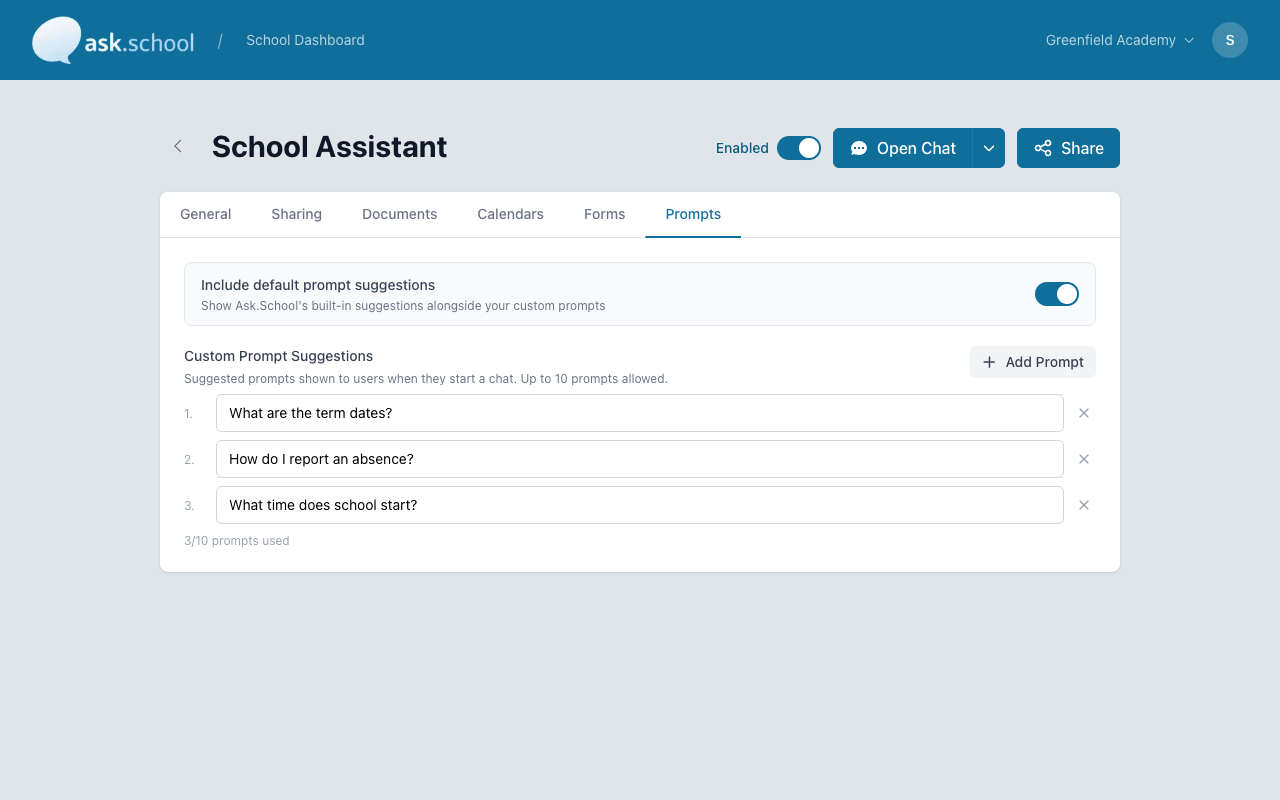
Ask.School provides built-in suggestions based on common school questions. Use the Include default prompt suggestions toggle to show or hide these. Default suggestions cover general topics like term dates, contact information, and school policies.
Custom Prompt Suggestions
You can add your own suggested prompts that appear when users open the chat. Up to 10 custom prompts are allowed.
Each prompt is a short question or phrase that users can click to start a conversation. For example:
- “What are the term dates?”
- “How do I report an absence?”
- “What time does school start?”
- “What is the uniform policy?”
Prompts appear as clickable buttons below the welcome message in the chat interface. The numbered list on this tab shows the order in which prompts appear. You can remove any prompt by clicking the x button next to it.
Tips for Good Prompts
- Keep them short and natural — write them as a user would ask the question
- Cover your most common questions — think about what your reception desk gets asked most often
- Mix different topics — include a range of subjects such as dates, policies, contact information, and procedures
- Use questions your knowledge base can answer well — prompts work best when the chatbot has good documents or knowledge to draw on for the answer
Good to Know
- You can use both default and custom prompts together. Default prompts appear first, followed by your custom prompts.
- If you disable default prompts and add no custom prompts, users will see an empty chat with no suggestions. They can still type their own questions.
- Prompts are just conversation starters — they do not limit what users can ask. Users can always type any question, regardless of the prompts shown.
- Review your prompts periodically. As you update your documents and knowledge base, your prompts should reflect what the chatbot can answer best.
Next Steps
- Chatbots — Return to the chatbots overview
- Chat Interface — Learn about the user-facing chat experience
- School Knowledge — Manage the knowledge your chatbots draw on