
Wonde Sync
Wonde Sync lets you connect your school’s Management Information System to Ask.School via Wonde. Once connected, student, staff, parent, and group data is synced automatically — no manual data entry required.
Setting up Wonde is a two-step process: you submit a short request from inside the platform, our team provisions the connection within 24 hours, and the sync runs from then on.
How to Get There
From the School Dashboard, click Wonde Sync in the left sidebar under Settings.
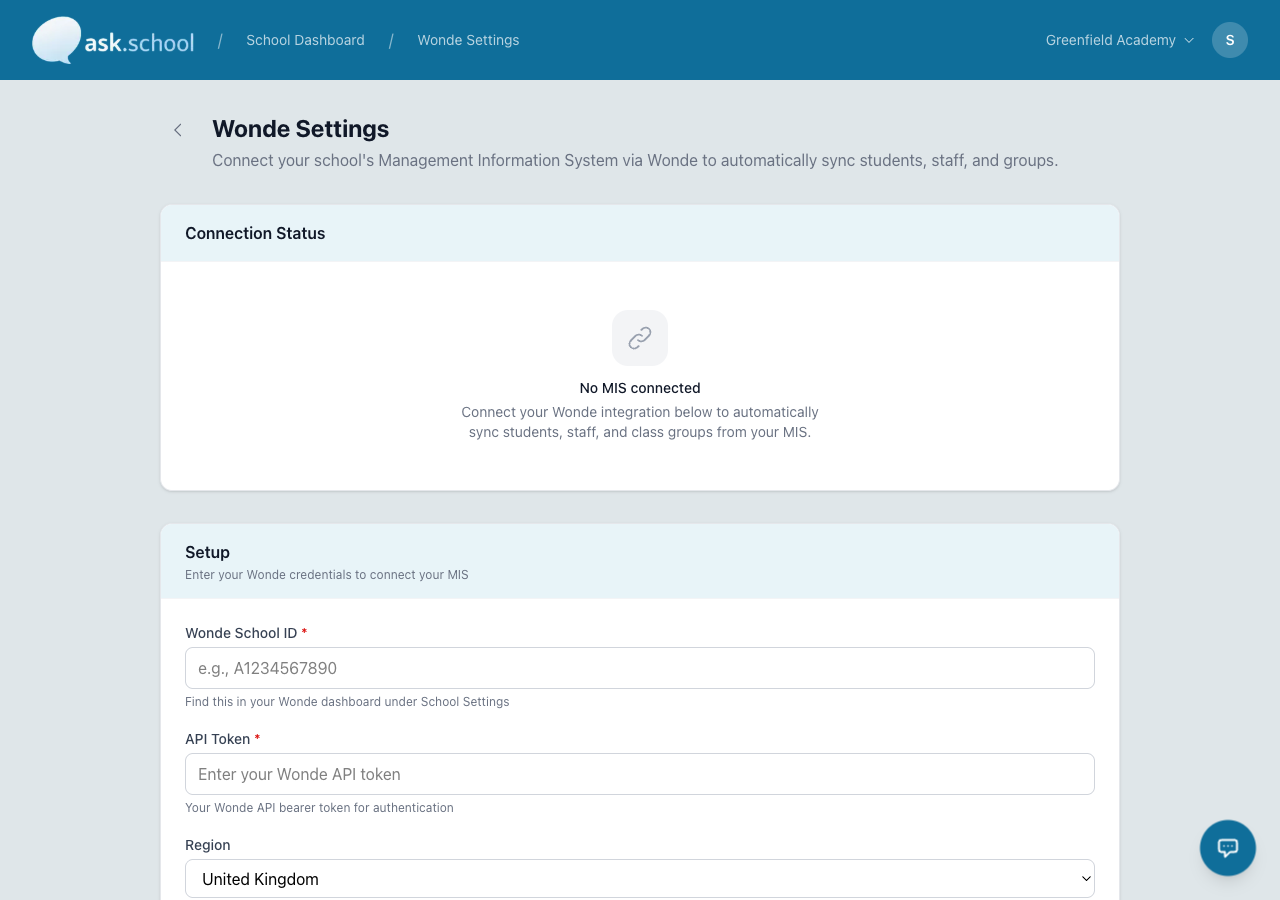 The Wonde Sync settings page
What is Wonde?
Wonde is a data integration platform that connects to all major UK school MIS systems, including:
- SIMS
- Arbor
- Bromcom
- ScholarPack
- And many more
Ask.School uses Wonde to securely read your school’s student, staff, and class data. Wonde does not modify any data in your MIS — it is read-only.
What gets synced
| Data | What happens | Group assigned |
|---|---|---|
| Students | Created as managed users with name, email, year group, and class assignments | Students |
| Staff | Created as managed users with name, email, and class teaching assignments | Staff |
| Parents/Guardians | Created as managed users and linked to their children | Parents |
| Classes | Imported as class groups (e.g. “10A/En1”, “7BLU/Sc”) with student and teacher rosters | — |
| Year groups | Imported as year-level groups (e.g. “Year 7”, “Year 11”) | — |
| Form groups | Imported as tutor groups (e.g. “7A”, “11B”) | — |
Managed users are created and maintained by the MIS sync. They are marked as system-managed and their details are updated automatically each time a sync runs. You can still manually add users alongside managed ones.
The Three States You Will See
The Integrations page shows one of three things depending on where your school is in the setup:
1. Request Form (no integration yet)
Before you’ve requested Wonde, the page shows a request form with two sections:
- Wonde Administrator — first name, surname, and email of the person at your school who manages your Wonde account
- School Details — school name, address, postcode, and telephone number, exactly as they appear in Wonde
Click Submit Request to send these details to the Ask.School integrations team.
 Submit your Wonde administrator and school details to start the connection
2. Request Submitted (waiting on us)
After you submit the form, the page changes to a confirmation message:
Request submitted. Thank you, your Wonde sync will be enabled within 24-hours.
You don’t need to do anything else at this point. The Ask.School team will receive your details, set up the connection in Wonde, and provision your integration.
 The page after submitting your request
If 24 hours pass and the page hasn't moved on, email [email protected] with your school name. The team can check the status and complete the setup.
3. Wonde Sync is Active
Once the team has provisioned your integration, the page shows:
Wonde sync is active. Your school’s MIS data is syncing automatically. To make changes, email [email protected].
From this point, syncs run automatically in the background — no manual action is required.
 Wonde is connected and syncing
Before You Submit the Request
You’ll need a Wonde account to grant Ask.School access to your MIS data. If your school doesn’t already have one:
- Visit wonde.com and create an account.
- Add your MIS connection in the Wonde dashboard. Your school’s MIS administrator may need to approve the data sharing.
- Once your school is set up in Wonde, you’re ready to submit the Ask.School request.
The request form asks for the school details as they appear in Wonde — make sure the school name, address, postcode, and telephone number all match your Wonde record so the team can identify your school.
Wonde Sync is only available on a paid subscription. If your school is on a free trial, the page will prompt you to subscribe before you can submit the request.
How Syncs Run
Once the integration is active, syncs run automatically — you don’t need to trigger them manually.
| Type | When | What it does |
|---|---|---|
| Full sync | Weekly | Fetches all data from the MIS and reconciles everything |
| Incremental sync | Multiple times daily | Fetches only records changed since the last sync |
| Webhook sync | Real-time | Wonde notifies Ask.School when data changes, triggering an immediate sync |
How users are matched
When the sync runs, it matches MIS records to existing Ask.School users in this order:
- By Wonde ID — if a user was previously created by a sync, they are matched by their stored Wonde ID.
- By email address — if a user with the same email already exists in your school (e.g. added manually), they are “adopted” as a managed user and linked to the MIS record.
- Create new — if no match is found, a new managed user is created.
This means you can invite staff manually before the sync is enabled — when the sync runs, it will find them by email and link them up rather than creating duplicates.
How guardians are synced
Parent and guardian data comes from the student records in your MIS. For each student, the sync:
- Reads the contact/guardian list from the MIS.
- Creates or matches each guardian as a user in Ask.School.
- Creates a parent–student relationship linking the guardian to the student, with the relationship type (mother, father, guardian, step-parent, grandparent, carer, or other).
Guardians are added to the Parents group automatically.
If a guardian's email address isn't in the MIS, the sync will look in the contact details for an email. Guardians without any email address are assigned a placeholder and can be updated later.
How leavers are handled
The sync checks for students, staff, and guardians that no longer appear in the MIS data. For each removed user:
- Their organisation membership is deactivated
- Their group memberships are deactivated
- Their parent–student links are deactivated
- Their class assignments are deactivated
The user account itself is not deleted — it is simply deactivated within your school. This preserves conversation history and can be reversed if the user returns.
Making Changes After You’re Live
The day-to-day sync runs hands-off, but anything that changes the connection itself — switching MIS, rotating the Wonde API token, pausing the sync, changing what’s synced — is handled by the Ask.School team.
To request a change, email [email protected] with:
- Your school name (as it appears in Ask.School)
- A short description of what you’d like to change
This includes:
- Updating your Wonde School ID or API token
- Pausing or disconnecting the sync
- Turning sync of students, staff, classes, or guardians on or off
- Switching to a new MIS
The team will confirm and apply the change.
Good to Know
- The request form is rate-limited (20 submissions per hour per user). If you bump into the limit, wait a few minutes or email [email protected] with the details.
- Wonde Sync is admin-only — only owners and managers can submit the request or see the integration status.
- MIS-synced groups (classes, year groups, form groups) are system-managed and cannot be manually deleted. They are updated each time a sync runs.
- You can still manually create users and groups alongside MIS-synced ones.
- The sync creates Students, Staff, and Parents groups automatically if they don’t already exist.
- Managed users have their names and email addresses updated from the MIS on each sync. Manual changes to these fields will be overwritten.
- If you also use the CSV import feature, the MIS sync will not duplicate users that were already imported — it matches by email address.
- Your Wonde API token is stored on our side, encrypted at rest.
- Syncs are processed in the background and do not affect the performance of the platform.
Next Steps
- User Groups — See how synced groups work alongside manual groups
- Managing Users — View and manage synced users
- Importing Users — Manually import users not covered by the MIS
- School Profile Settings — General school configuration