
Conversation Monitoring
Conversation Monitoring lets administrators browse all chatbot conversations across the organisation. This provides full visibility into how chatbots are being used and supports safeguarding oversight.
How to Get There
From the School Dashboard, click Conversations in the left sidebar under Safeguarding.
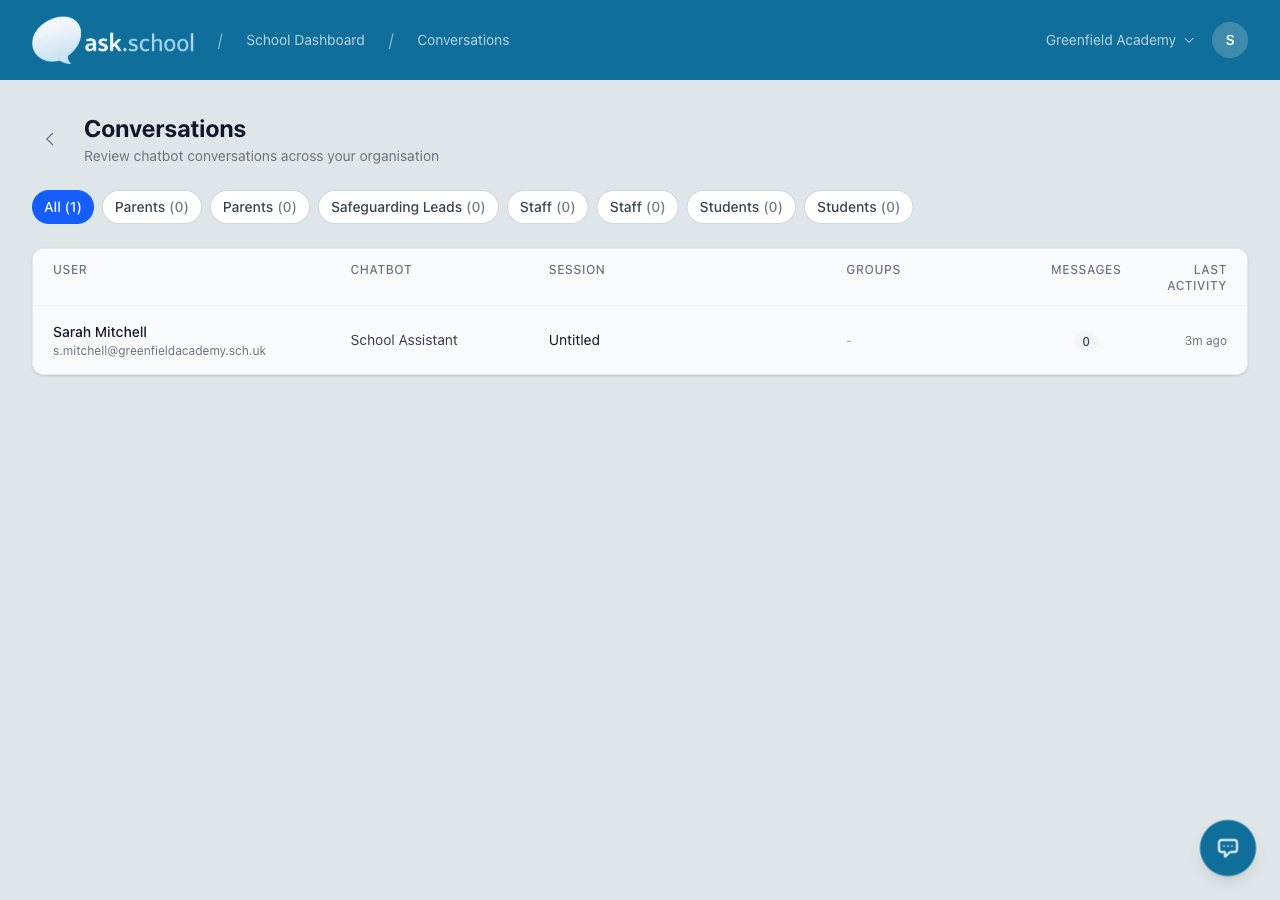 The Conversations page showing chat sessions with group filters and session details
What you’ll see
The conversations page shows a table of all chat sessions, with the following information for each:
| Column | What it shows |
|---|---|
| User | The user’s name and email address |
| Chatbot | Which chatbot the conversation was with |
| Session | The conversation title and a preview of the last message |
| Groups | Colour-coded badges showing the user’s group memberships |
| Messages | The total number of messages in the conversation |
| Last Activity | When the most recent message was sent (shown as relative time, e.g. “2m ago”) |
Filtering by group
At the top of the page, pill-shaped filter buttons let you narrow the list by user group. Each pill shows the group name and the number of conversations from members of that group.
- Click All to see every conversation.
- Click a specific group (e.g. “Students”, “Staff”, “Parents”) to filter.
- Click the active pill again to deselect it and return to the full list.
Groups are colour-coded by type — blue for students, violet for staff, amber for parents, and grey for other groups.
Relationship to safeguarding
Conversation Monitoring works alongside Safeguarding Alerts. While alerts flag specific messages that contain concerning content, the conversations view lets you browse the full context of any chat session. If a safeguarding alert is raised, you can use this page to review the complete conversation.
Good to Know
- Only administrators (owners and managers) can access conversation monitoring.
- Conversations from both logged-in users and anonymous (public chatbot) sessions are included.
- The page updates in real time as new conversations come in.
Next Steps
- Safeguarding Alerts — How automatic alerts work
- User Groups — Manage groups and permissions
- Creating Chatbots — Configure chatbot access controls