
Safeguarding Alerts
Ask.School monitors all chatbot conversations for safeguarding concerns. When a message contains potentially concerning content, the system automatically creates an alert and notifies designated staff.
How to Get There
From the School Dashboard, click Alerts in the left sidebar under Safeguarding.
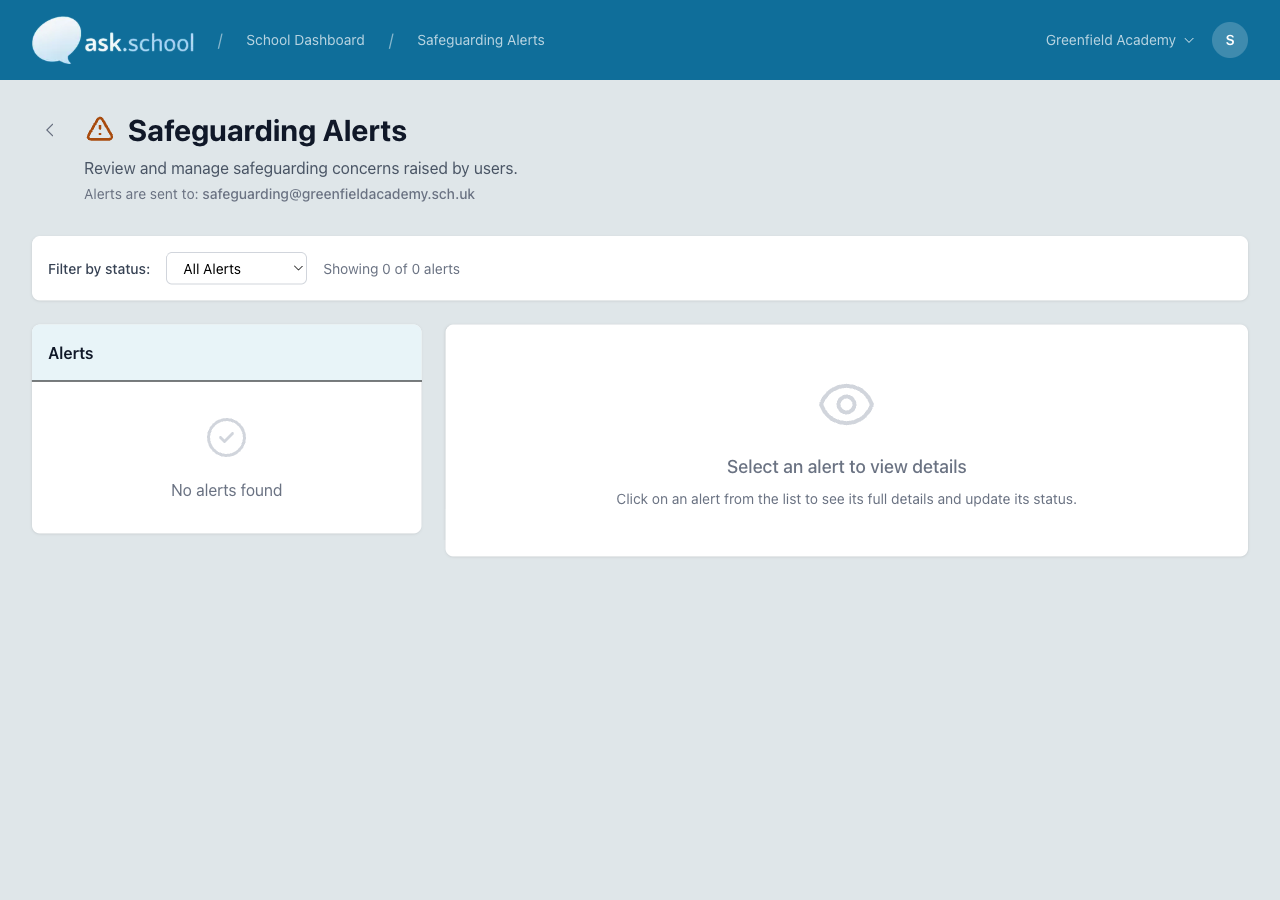 The Safeguarding Alerts page showing alerts with severity levels and detail panel
How it works
- A user sends a message to a chatbot.
- The system analyses the message for safeguarding concerns.
- If a concern is detected, an alert is created with a severity level.
- An email notification is sent to the school’s safeguarding email address.
- Staff with the Can view safeguarding alerts permission can review and manage the alert.
Severity levels
Each alert is assigned a severity level:
| Level | What it means |
|---|---|
| Low | Minor concern that may need monitoring. No immediate action required. |
| Medium | A concern that should be reviewed soon. May require follow-up. |
| High | A serious concern that needs prompt attention and action. |
| Critical | An urgent safeguarding issue that requires immediate action. |
Alert workflow
Each alert moves through a workflow:
- New — Alert has just been created. No one has looked at it yet.
- Acknowledged — A staff member has seen the alert and is aware of it.
- In Progress — The alert is being investigated or acted upon.
- Resolved — The concern has been addressed and appropriate action taken.
- Closed — The alert has been closed with no further action needed.
Reviewing an alert
- Go to Safeguarding from the sidebar.
- You’ll see a list of alerts, with the most recent first.
- Click on an alert to view the details:
- Title and description of the concern
- The relevant messages from the conversation
- The user who was chatting (if logged in)
- The severity level
- Update the status as you work through the alert.
- Add notes about the actions you’ve taken.
Email notifications
When a safeguarding alert is created, an email notification is sent to the safeguarding email address configured in School Settings. Make sure this is set to your Designated Safeguarding Lead (DSL) or safeguarding team’s email.
Who can see alerts
Only users who belong to a group with the Can view safeguarding alerts permission can see and manage alerts. This is typically limited to:
- Designated Safeguarding Lead (DSL)
- Deputy DSL
- Headteacher / Principal
- Other designated safeguarding staff
See User Groups to configure this permission.
Conversation monitoring
In addition to automatic alerts, designated staff can browse all chatbot conversations across the school for safeguarding review.
Browsing conversations
Go to Safeguarding → Conversations to see every conversation in your school. The page shows:
- Conversation title — the topic, generated automatically from the first user message
- Chatbot — which chatbot the conversation happened on
- User — name and email if logged in, or “Anonymous” for public chats
- Group badges — coloured pills showing whether the user is a Student, Staff member, Parent, or Other
- Last message — a short preview of the most recent reply
- When — relative time since the conversation last updated
Use the group filter at the top to narrow to a single audience (e.g. only student conversations).
 The Conversations list filtered by user group
Reading a single conversation
Click any row to open the full conversation transcript. You’ll see every message exchanged, in order, with timestamps. From here you can:
- Read the entire back-and-forth in context
- Copy individual messages or the full transcript for case notes
- Return to the list using the back button at the top
From an alert, you can also click through to the conversation that triggered it — this is the same view.
Exporting
Use the Export CSV button at the top of the Conversations list to download a spreadsheet of all conversations in scope, including title, chatbot, user, group, message count, and last activity time. Useful for safeguarding audits and termly reports.
Good to Know
- Alert details (title, description, messages) are encrypted at rest for security.
- Safeguarding monitoring works on all chatbots, including public ones.
- Anonymous (not logged in) conversations are still monitored — the alert will show the session details even if the user isn’t identified.
- The system uses AI-powered content analysis to detect concerns — it’s designed to flag potential issues for human review, not to make safeguarding decisions.
- All alerts are logged and timestamped for record-keeping.
Next Steps
- User Groups — Set safeguarding permissions
- School Settings — Configure your safeguarding email
- Chat Interface — How conversations are monitored