
Useful Links
Useful Links are URLs that your chatbot can share with users when relevant. When someone asks a question that relates to one of your links, the chatbot will include the link in its response.
How to Get There
The Useful Links page is reachable at your-school-slug/useful-links (e.g. https://ask.school/greenfield-academy/useful-links). The page may not appear in your sidebar by default — go directly to the URL, or open a chatbot’s editor and use the Links tab to manage chatbot-specific links.
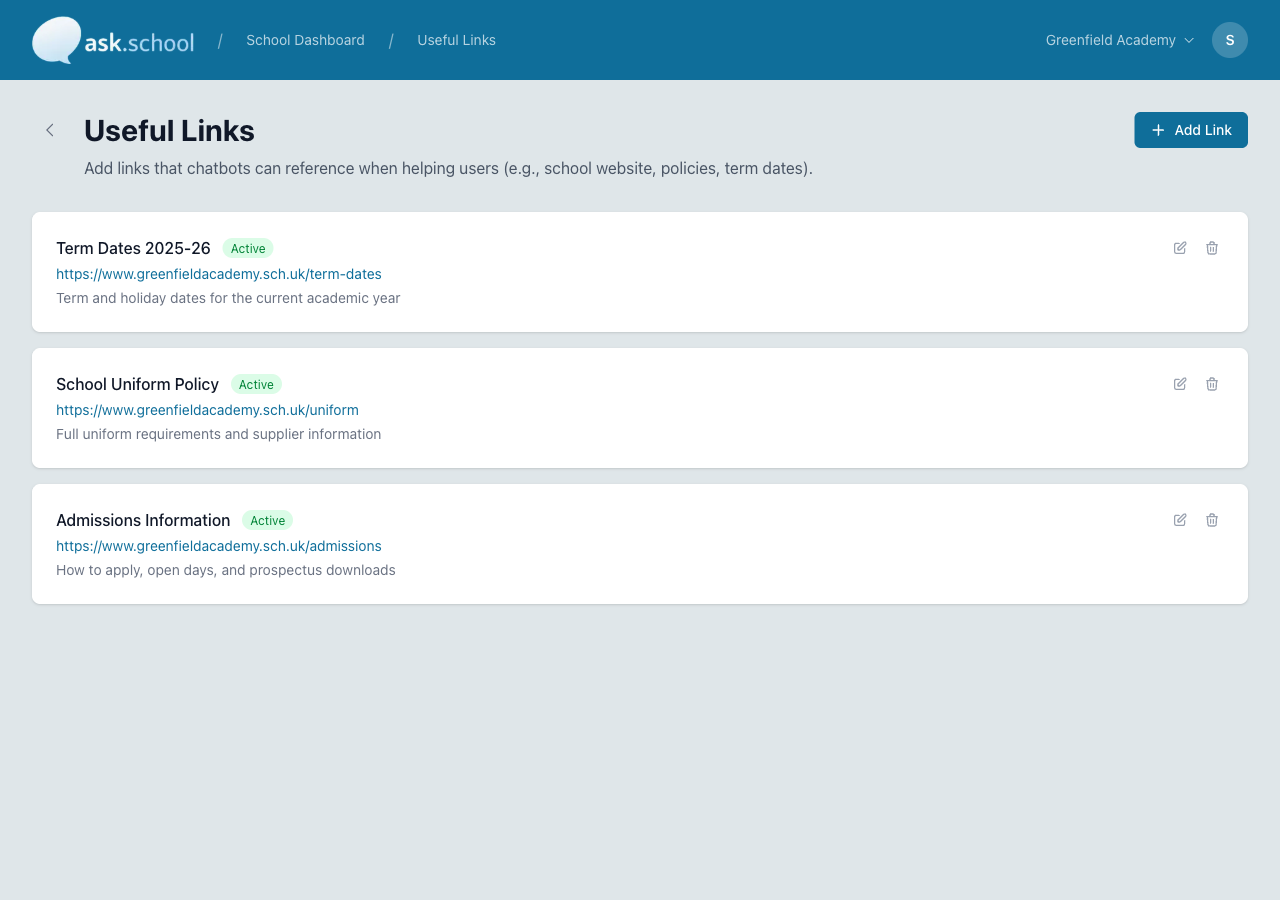 The Useful Links page showing links with titles, URLs, and descriptions
What it does
Each useful link has:
- Title — A short label (e.g., “Term Dates”, “School Uniform”, “Admissions”)
- URL — The web address to link to
- Description — A brief note about what users will find at this link
- Active — Whether the chatbot should use this link
Adding a link
- Go to Useful Links from the sidebar.
- Click Add Link.
- Enter a title — keep it short and descriptive.
- Enter the URL — the full web address including
https://. - Add a description — explain briefly what the page contains.
- Click Save.
Auto-discovery
When you generate your school profile, Ask.School automatically discovers useful links from your school’s website. These are added to your Useful Links list for you to review.
You can edit, reorder, or remove any auto-discovered links.
Ordering links
Links are displayed in the order you set. Change the order value to rearrange them. Links with a lower order number appear first and are given higher priority.
Examples
| Title | URL | Description |
|---|---|---|
| Term Dates | https://school.com/term-dates | Start and end dates for each term |
| School Uniform | https://school.com/uniform | Uniform requirements and where to buy |
| Admissions | https://school.com/admissions | How to apply for a place |
| Parent Portal | https://school.com/portal | Login to view reports and attendance |
| SEND Information | https://school.com/send | Our approach to special educational needs |
Good to Know
- The chatbot includes useful links in its instructions, so it knows when to suggest them.
- Keep descriptions brief — they help the chatbot decide when a link is relevant.
- You can temporarily hide a link by toggling Active off without deleting it.
Next Steps
- School Knowledge — Add Q&A pairs for common questions
- Style Guide — Set the chatbot’s tone of voice
- School Profile Settings — Generate a profile from your website