
Sensitive content stays out of student chats
When you add a document or piece of knowledge to Ask.School, nobody sees it until you say so. You decide whether parents, staff or students should have access — and the chatbot only quotes from what each group is allowed to see. Your safeguarding policy will never accidentally turn up in a student chat.
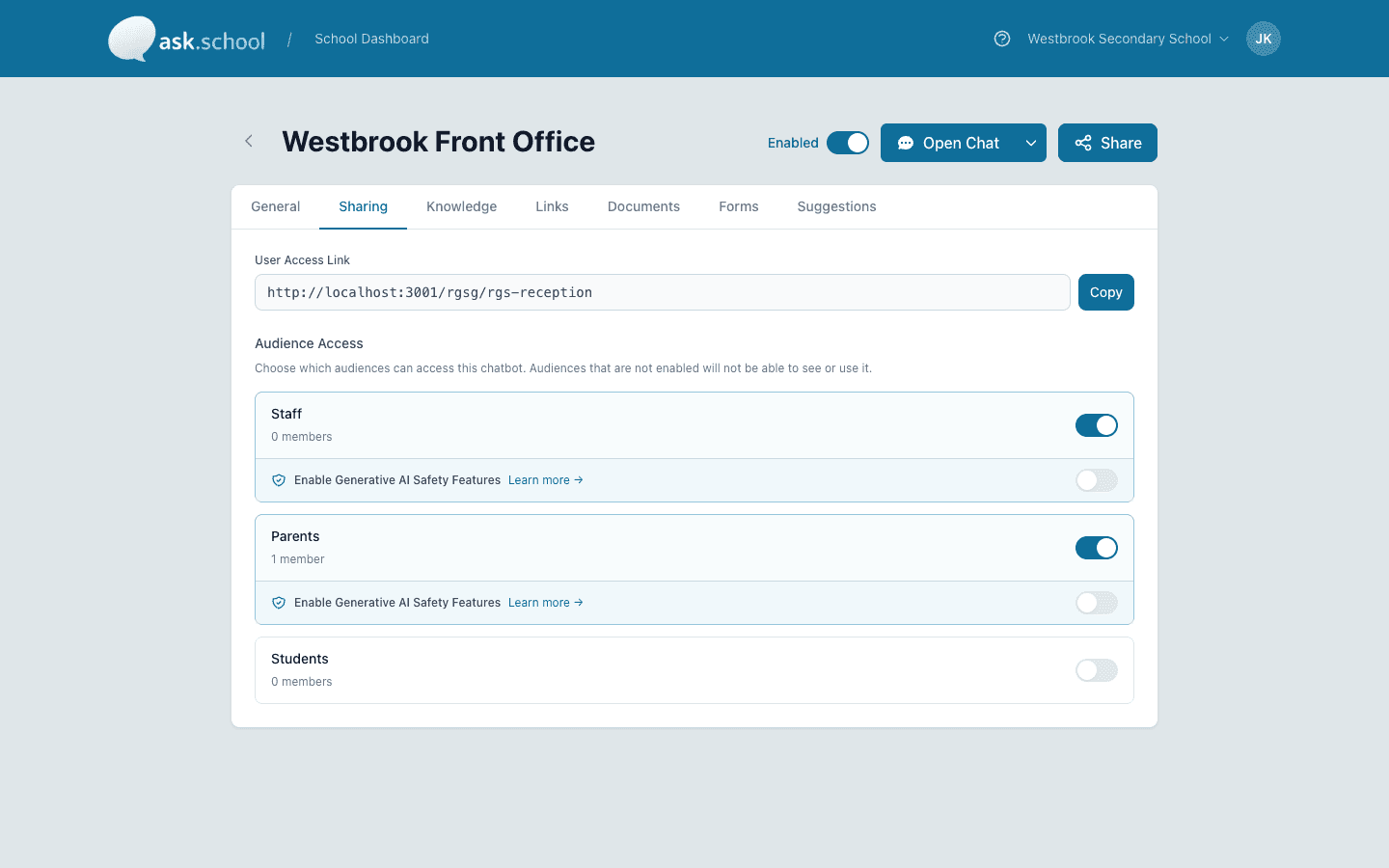
You decide which audiences can use the chatbot. The default is none.
The capability, in plain English
Private by default
Documents you upload are private until you say otherwise. Tick a box to share them with parents, staff, students or the public — and only those people will ever see them in the chatbot.
Sensitive content held for review
Anything containing SEN records, safeguarding notes, medical details or other sensitive information is held back the moment it's uploaded. An admin reads it first, writes a short note explaining why it's safe to use, and only then does the chatbot get access.
Different rules for different groups
A document for sixth-formers won't show up for primary children, even if both year groups use the same chatbot. The same rules let you keep one school's content separate from another's.
Your school's own details are recognised
Your school's name, address, phone and email are recognised automatically — so the chatbot can share its own contact details with parents without ever treating them as private information.
A clear record of every decision
Every approval is logged: who approved it, when they did, and why. Your data protection lead can pull the full record for an inspection in seconds.
Three safeguards, not one
Your audience rules are enforced in three different places before the chatbot ever sends a reply. If one check somehow failed, the other two would still hold.
From sign-up to running in minutes
- STEP 1
Upload a document
Drag and drop a PDF, Word document or text file into your school's library.
- STEP 2
Ask.School checks it
We look for sensitive information — SEN records, safeguarding notes, medical details and so on. If we find anything, the document is held back automatically.
- STEP 3
An admin reviews
A school admin opens the file, sees what was flagged, writes a short note explaining the reason, and either approves or declines it. The decision is recorded.
- STEP 4
Choose who can see it
Tick the boxes for the audiences who should have access — staff, parents, students or the public — and tick the school sites the document applies to.
- STEP 5
Ready
Only the people you've chosen will see the document in a chatbot reply. Anyone else asking will be told the chatbot doesn't know — because, for them, it doesn't.
What to tell your DPO
UK GDPR Article 9
Documents that touch on health, religion, ethnicity or sex life — what UK GDPR calls 'special category' data — are held back at upload until an admin records why the school is using them.
KCSIE-safe defaults
A chatbot that students use cannot see staff-only files. Nothing is shared until an admin chooses to share it — so the safe option is the one nobody has to remember to set.
Three layers, not one
We check the audience rules in three different places before the chatbot replies. A mistake in any one of them would still be caught by the other two.
Ready for inspection
Every approval, every reason given and every change to who can see what is recorded. Your data protection lead can produce the full record for an audit or a subject access request.
Full detail in our DPA, sub-processor list and the safeguarding hub.
More features schools care about
Ready to see this in your school?
Start a free 14-day trial. No credit card required. Cancel any time.